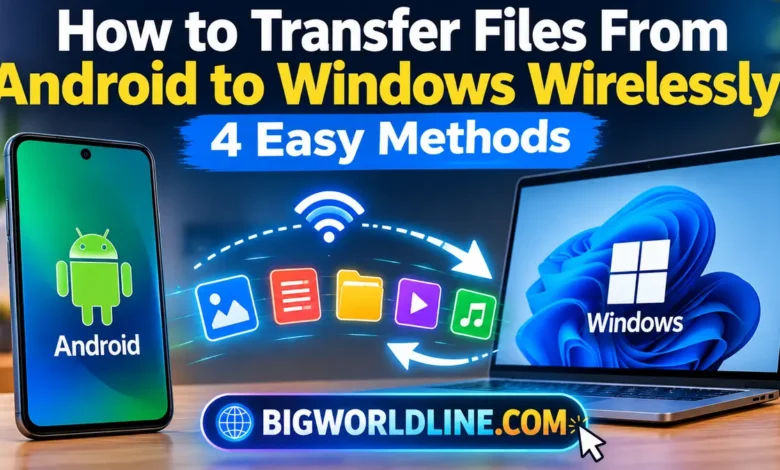
Transferring photos, videos, documents, and other files between your Android phone and Windows PC doesn’t have to involve a USB cable. With the right wireless tools, you can move files in minutes, whether you’re sitting at your desk, sharing documents with a colleague, or backing up vacation photos.
The best method depends on your needs. Google Quick Share is convenient for nearby devices, LocalSend is excellent for private transfers over your local network, browser-based tools work well for occasional file sharing, and cloud storage makes files accessible across devices from almost anywhere.
This guide explains how to transfer files from Android to Windows wirelessly using four practical methods, including step-by-step instructions, advantages, limitations, speed considerations, and security tips.
Key Takeaways
- Best for nearby transfers: Google Quick Share for Windows.
- Best for local, internet-free transfers: LocalSend, provided both devices share a local network.
- Best for occasional transfers: Browser-based file-sharing tools that support Android and Windows.
- Best for accessing files anywhere: Google Drive, OneDrive, or another cloud storage service.
- Best security practice: Use trusted applications, verify the receiving device, and avoid public Wi-Fi for sensitive files.
1. Transfer Files Using Google Quick Share for Windows
Google Quick Share is one of the most convenient ways to transfer files between compatible Android phones and Windows computers. It supports wireless sharing with nearby devices and can transfer photos, videos, documents, and other supported file types without uploading them to a cloud account.
Quick Share generally uses Bluetooth to discover nearby devices and a suitable local wireless connection to transfer files. Exact connectivity requirements depend on the device and software configuration.
Step 1: Install Quick Share on Your Windows PC
- Open the official Quick Share for Windows page.
- Download the Windows application from the official source.
- Install the application and launch it.
- Sign in with your Google account if prompted, or continue with the available setup options.
Check the application’s current system requirements before installing it, especially if you’re using an older Windows computer.
Step 2: Configure Quick Share on Android
On most supported Android phones, Quick Share is available through the system sharing menu or Quick Settings.
- Open Settings and search for “Quick Share” if you cannot find it.
- Enable the feature and review your device visibility settings.
- Turn on Bluetooth and Wi-Fi if requested.
- Keep your phone unlocked while establishing the connection.
On your Windows PC, open Quick Share and configure who can discover your computer. For security, choose a restricted visibility option whenever possible.
Step 3: Send Files From Android to Windows
- Open the file manager or gallery on your Android phone.
- Select the photos, videos, documents, or other files you want to transfer.
- Tap Share and select Quick Share.
- Choose your Windows PC from the list of nearby devices.
- Accept the incoming transfer on your PC if required.
- Open the destination folder to verify that the files arrived correctly.
Tip: If your PC doesn’t appear, check Bluetooth, Wi-Fi, device visibility, and the Quick Share application. Keep both devices relatively close together and temporarily check whether a firewall or network restriction is interfering with discovery.
Advantages and Limitations
Pros:
- No USB cable or cloud upload required.
- Convenient for photos, documents, and multiple files.
- Designed for nearby device-to-device sharing.
Cons:
- Both devices need compatible software and hardware.
- Device discovery can fail because of visibility or connectivity settings.
- Transfer performance depends on the devices and wireless environment.
Quick Share is a strong starting point if you regularly move files between your Android phone and Windows laptop.
2. Transfer Files With LocalSend
LocalSend is a free, open-source file-sharing application that lets devices exchange files over a local network. It is particularly useful if you want to move files without relying on a cloud storage account.
Unlike cloud-based methods, LocalSend transfers files directly between participating devices over the network. A working internet connection is generally unnecessary when both devices can communicate over the same local network.
Step 1: Install LocalSend on Both Devices
- Visit the official LocalSend website.
- Download the Windows version and install it on your computer.
- Install LocalSend on your Android phone through a trusted app distribution source linked by the project.
- Open the application on both devices.
Make sure the Android phone and PC are connected to the same Wi-Fi network. If your router separates wireless clients from one another, you may need to adjust its network settings.
Step 2: Send Files From Android to Windows
- Launch LocalSend on your phone and PC.
- On Android, tap the option to send files.
- Select the files you want to transfer.
- Choose your Windows computer from the list of available devices.
- Accept the transfer on the receiving computer if prompted.
- Check the destination folder to confirm that the transfer completed.
For larger transfers, keep both devices connected to power if possible and avoid moving too far from the router.
Step 3: Troubleshoot Connection Problems
If LocalSend cannot find your PC, try these checks:
- Confirm both devices are on the same local network.
- Disable guest-network isolation if it prevents devices from communicating.
- Allow LocalSend through the Windows firewall when appropriate.
- Restart the application on both devices.
- Check whether a VPN or security application is interfering with local connections.
Do not disable your firewall permanently just to make a transfer work. Instead, review the application’s permissions and allow only the network access it needs.
Advantages and Limitations
Pros:
- Free and open-source.
- No mandatory cloud account for local transfers.
- Suitable for transferring large collections of photos and documents.
- Supports transfers between multiple supported operating systems.
Cons:
- Both devices must be able to communicate over the local network.
- Initial setup may require troubleshooting.
- Transfer speeds depend on your Wi-Fi equipment and network conditions.
Best for: People who regularly transfer personal files and prefer keeping the process within their local network.
3. Transfer Files Using Browser-Based Sharing Tools
Browser-based file-sharing tools can be convenient when you don’t want to install a dedicated desktop application. Depending on the service, you may be able to connect your Android phone and Windows PC through a website and transfer files directly.
However, not every browser-based sharing tool works the same way. Some use direct peer-to-peer connections, while others upload files to a server temporarily. Availability, file-size limits, and connection requirements can also change.
Step 1: Choose a Trusted Web-Based Tool
Look for a reputable service that explicitly supports Android and Windows browsers. Read its current privacy policy and check whether files are transferred directly or stored on an external server.
Avoid unfamiliar websites that request unnecessary permissions, browser extensions, or access to unrelated personal information.
Step 2: Connect Both Devices
- Open the service on your Windows PC using a supported browser.
- Open the same service on your Android phone.
- Follow the website’s instructions to pair the devices.
- If the service uses a QR code or temporary connection code, scan or enter it as directed.
- Confirm that the correct receiving device is displayed before sending anything.
Some services require both devices to remain on the same Wi-Fi network. Others can connect across networks or use temporary cloud storage.
Step 3: Send and Verify Your Files
- Select the files on your Android phone.
- Choose the connected Windows computer as the destination.
- Approve any required transfer request.
- Wait for the upload or direct transfer to finish.
- Open the downloaded files on your PC to verify their contents.
If a browser-based service stops working, check whether it is still maintained and whether your browser supports its connection technology.
Advantages and Limitations
Pros:
- Little or no installation required.
- Convenient for occasional transfers.
- Useful when you cannot install software on a work computer.
Cons:
- Some services impose file-size or session limits.
- Browser compatibility can affect reliability.
- Certain tools upload files to remote servers.
- Unmaintained services may have security or availability problems.
Important: Treat temporary sharing links and pairing codes like private information. Anyone who gains access to an inadequately protected transfer session could potentially receive your files.
4. Transfer Files Through Cloud Storage
Cloud storage is a practical option when your Android phone and Windows PC are not near each other. Services such as Google Drive and Microsoft OneDrive let you upload files from your phone and download them later on your computer.
This approach is especially useful for documents, backups, and files you need to access from multiple locations. Unlike a direct local transfer, however, cloud storage usually requires an internet connection and sufficient storage space.
Step 1: Upload Files From Android
For this example, we’ll use Google Drive.
- Open the Google Drive application on your Android phone.
- Sign in to your Google account.
- Tap the + button and select the upload option.
- Browse your phone’s storage and select the files you want to transfer.
- Wait for the upload to finish.
For large videos, connect to Wi-Fi and check your available cloud storage before starting.
Step 2: Download Files on Windows
- Open Google Drive in your Windows browser.
- Sign in to the same Google account.
- Locate the files you uploaded from Android.
- Select the desired files and choose Download.
- Open your Windows Downloads folder and verify the results.
You can also install the official Google Drive desktop application if you prefer to work with synchronized files through File Explorer.
Step 3: Consider OneDrive as an Alternative
If you already use a Microsoft account on Windows, OneDrive may fit naturally into your workflow.
- Install or open OneDrive on your Android phone.
- Upload the files you want to move.
- Open OneDrive on your Windows computer or visit OneDrive on the web.
- Sign in to the same account and download the files, or access them through your synchronized folder.
Keep in mind that synchronization and downloading are not identical. A synchronized file may initially appear on your PC as an online-only item until you open it or explicitly download it.
Advantages and Limitations
Pros:
- Works even when your devices are in different locations.
- Provides convenient file access across multiple devices.
- Useful for backups and ongoing document workflows.
Cons:
- Uploading and downloading depend on internet speed.
- Free storage quotas may be limited.
- Files consume cloud storage until deleted.
- Account security becomes important because your data is stored online.
Enable two-factor authentication when available, and avoid sharing private documents through publicly accessible links.
Which Wireless File Transfer Method Is Best?
The right option depends on your priorities, file sizes, and network conditions.
| Method | Internet Required? | Installation | Best Use |
|---|---|---|---|
| Google Quick Share | Usually not for nearby transfers | Windows app; Android support | Quick device-to-device sharing |
| LocalSend | Not usually, if the local network works | Apps on both devices | Private local transfers |
| Browser-based sharing | Depends on the service | Usually a browser only | Occasional file sharing |
| Cloud storage | Yes, for upload and download | App or browser | Remote access and backups |
Which Method Is Fastest?
There is no universal speed winner. Local transfers through Quick Share or LocalSend can be faster than cloud storage because they avoid uploading and downloading files through an internet service, but actual results depend on wireless hardware, network congestion, file size, and software performance.
For a large video collection, try LocalSend or Quick Share first. For a handful of documents you need on a different computer later, cloud storage may be more convenient even if it takes longer.
Security Tips for Wireless File Transfers
Wireless sharing is convenient, but a few precautions help protect your personal information.
- Verify the recipient: Check the device name before accepting or sending files.
- Use trusted applications: Download software from official websites or recognized app stores.
- Avoid public Wi-Fi for sensitive transfers: Prefer a trusted home or office network.
- Review sharing permissions: Turn off device visibility when you no longer need it.
- Protect cloud accounts: Use strong passwords and two-factor authentication.
- Check downloaded files: Scan suspicious files and avoid opening unexpected attachments.
For work documents, financial records, or private photographs, choose a transfer method with clear security practices rather than selecting a service based solely on convenience.
Frequently Asked Questions
1. Can I transfer files from Android to Windows wirelessly without internet?
Yes. Google Quick Share and LocalSend can transfer files without requiring an internet connection for the transfer itself, provided the devices and their connectivity requirements are satisfied.
For LocalSend, both devices generally need access to the same functioning local network. A Wi-Fi network can connect devices locally even when that network has no internet access.
2. What is the fastest way to transfer large files from Android to Windows?
Quick Share and LocalSend are good starting points for large files because they can transfer data locally without cloud uploads. The fastest choice depends on your devices, wireless connection, network congestion, and file sizes.
For particularly large videos, avoid transferring over congested Wi-Fi and keep both devices connected to a stable network.
3. Is wireless file transfer safe?
Yes, when you use trusted software and verify the receiving device. Local transfers can reduce exposure to cloud storage, while cloud services can provide useful security features such as account protection and controlled sharing permissions.
No method is automatically risk-free. Review the service’s security practices and avoid transferring sensitive files through unknown websites.
4. Can I transfer files without installing an application?
Sometimes. Browser-based services may let you transfer files without installing a desktop application, although they may still require an Android app or specific browser permissions.
If you want a dependable, recurring workflow, a dedicated application such as Quick Share or LocalSend may be more convenient.
Final Thoughts
You don’t need a USB cable to move files between an Android phone and a Windows PC. Quick Share makes nearby sharing straightforward, LocalSend offers a practical local-network alternative, browser-based tools are useful for occasional transfers, and cloud storage works well when your devices are far apart.
For most nearby transfers, start with Quick Share. If you prefer a local-network solution without a cloud account, try LocalSend. Once you’ve chosen the right method, transferring photos, videos, and documents becomes a simple part of your everyday workflow.
Troubleshooting wireless connections on PC? If you are also experiencing sound lag while using wireless devices, learn how to fix Windows 11 Bluetooth audio delay when watching videos.