How to Stop Android Apps From Running in the Background Without Breaking Notifications

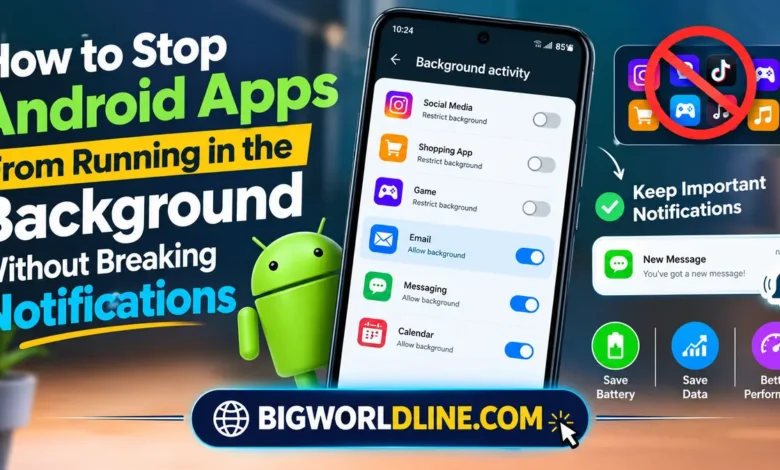
Some Android apps consume battery power even when you are not using them. Social media platforms, shopping apps, games, and other services may continue working in the background to sync data, refresh content, or check for updates.


The challenge is that stopping every background process can create another problem: you might miss important notifications. Messages may arrive late, email alerts may stop appearing, and time-sensitive reminders might not reach you when expected.
The good news is that you can stop Android apps running in background without sacrificing essential alerts. The key is to restrict unnecessary activity while allowing messaging, email, security, and other important apps to work properly.
This guide explains the safest settings to use, how to identify battery-draining apps, and how to troubleshoot notifications if they stop arriving on time.
Key Takeaways
- Restrict background activity for apps that do not need constant updates.
- Keep notifications enabled for messaging, email, banking, and reminder apps.
- Use Android’s built-in battery settings before installing third-party task killers.
- Avoid force-stopping essential apps if you depend on their notifications.
- Check manufacturer-specific battery settings if alerts arrive late.
- Test notification delivery after changing background restrictions.
Why Do Android Apps Run in the Background?
Android allows apps to perform certain tasks when they are not open on your screen. This behavior supports features such as message delivery, automatic backups, location updates, and email synchronization.
However, not every app needs unrestricted background access.
For example, a messaging app may need to maintain a connection or receive push notifications, while a single-player game may not need to refresh anything until you open it again.
Background activity can affect your phone in several ways:
- Battery drain: Apps may use power to sync data or perform scheduled tasks.
- Mobile data consumption: Some apps download content when you are not using them.
- Performance issues: Excessive activity can compete for system resources.
- Unnecessary notifications: Apps may send promotional alerts you do not want.
The goal is not to eliminate all background activity. It is to give apps only the access they actually need.
1. Check Which Android Apps Consume the Most Battery
Before changing settings, identify the apps responsible for excessive battery usage.
Step-by-step instructions
- Open Settings on your Android phone.
- Tap Battery or Battery and device care, depending on your device.
- Open Battery usage or the battery activity screen.
- Review the list of apps and their reported battery consumption.
- Select an app that appears to use an unusual amount of power.
- Look for background activity details and available battery restrictions.
Menu names vary across Android versions and manufacturers. On some Samsung phones, battery information appears under Battery and device care, while Google Pixel devices generally place it under Battery.
Do not assume that the app using the most battery is automatically a problem. A navigation app, video service, or game may consume substantial power because you actively used it.
What to look for: An app that consumes significant battery despite receiving little or no screen time deserves closer attention.
2. Restrict Background Battery Usage for Unnecessary Apps
Android offers built-in battery controls that can limit how much freedom an app has when running in the background.
This is usually the best starting point because you can restrict individual apps instead of disrupting the entire phone.
How to stop Android apps running in background
- Open Settings.
- Select Apps or Apps and notifications.
- Choose the app you want to restrict.
- Tap App battery usage, Battery, or a similarly named option.
- Select the available restricted or optimized battery setting.
- Return to the app list and repeat for other nonessential apps.
On some devices, you may see options such as Unrestricted, Optimized, and Restricted.
Here is what they generally mean:
- Unrestricted: The app receives greater freedom to perform background work, potentially using more battery.
- Optimized: Android manages background activity to balance performance and battery life.
- Restricted: Background activity is limited more aggressively, which may delay updates or notifications.
Exact behavior depends on the Android version and the phone manufacturer.
Which setting should you choose?
For most apps, start with Optimized. It provides a sensible balance without unnecessarily limiting background services.
Use Restricted for apps that do not need timely updates, such as rarely used games, wallpaper utilities, or shopping apps that you only open occasionally.
Keep essential messaging and email apps optimized or unrestricted when reliable, immediate notifications are important.
3. Preserve Notifications for Important Apps
Restricting background activity and disabling notifications are two different actions.
Battery restrictions control how freely an app can work in the background. Notification settings determine whether Android allows the app to display alerts through the notification system.
However, these settings can interact: aggressive battery restrictions may delay the work required to deliver certain notifications.
Check notification permissions
Follow these steps for each important app:
- Open Settings.
- Go to Apps and select the app.
- Tap Notifications.
- Make sure Allow notifications is enabled.
- Review individual notification categories or channels.
- Enable the categories you actually need, such as direct messages, incoming calls, or important account alerts.
Some apps have additional notification controls inside their own settings menus.
For example, an email app may let you choose which accounts synchronize, while a messaging app may offer separate controls for group chats and direct messages.
Important: Enabling notifications does not guarantee instant delivery if background execution, network access, synchronization, or the app’s own service is restricted.
Which apps should not be heavily restricted?
Consider leaving these apps on optimized settings unless you have tested their behavior carefully:
- Messaging apps used for personal or work communication.
- Email apps that deliver time-sensitive messages.
- Calendar and medication reminder apps.
- Security apps that require timely alerts.
- Smart-home apps that monitor important events.
You can still silence promotional notification categories without blocking useful alerts.
4. Turn Off Background Data for Apps That Do Not Need It
If an app consumes mobile data when you are not using it, restricting background data can help.
Android provides data controls, although their location and available options vary by device and app.
Steps to limit background data
- Open Settings.
- Tap Network and internet, Connections, or Mobile networks.
- Find Data usage.
- Open the app-specific data usage screen, if available.
- Disable background data for apps that do not need to download information while idle.
On some Android devices, you can also enable Data Saver to limit background mobile data for many apps.
Keep in mind that restricting background data may delay email synchronization, cloud backups, content updates, or notifications that depend on network communication.
Use this setting selectively rather than applying it to every app.
Best practice: Restrict background data for apps that mainly display static content or advertisements, but preserve normal connectivity for apps that must receive timely updates.
5. Put Unused Apps to Sleep
Some Android manufacturers provide features that automatically limit activity for apps you rarely use.
Samsung Galaxy phones, for example, may offer sleeping and deep-sleeping app categories. Other manufacturers provide similar background-management tools under different names.
How to use app sleeping features
On supported Samsung devices:
- Open Settings.
- Select Battery and device care or the corresponding battery menu.
- Find Background usage limits.
- Review the available sleeping or deep-sleeping app lists.
- Add nonessential apps where appropriate.
The precise path depends on your One UI version.
Sleeping features are useful for apps that do not need to remain active. Deep-sleeping apps may have their background activity and updates heavily restricted until you open them again.
Avoid putting essential communication apps into deep sleep if you rely on immediate notifications.
If your phone has no dedicated sleeping feature, individual app battery restrictions can achieve a similar goal.
6. Avoid Force-Stopping Apps You Still Need
Android includes a Force stop option in an app’s information screen. Although it can close a misbehaving app, it is not the best way to manage everyday background activity.
Force-stopping an app can prevent it from performing normal work until it is launched again. Depending on the app, this may interrupt notifications, synchronization, or scheduled tasks.
For example, force-stopping your messaging app before leaving home could prevent expected alerts until you open it again.
Instead, use this approach:
- Choose battery optimization for apps you use regularly.
- Apply restricted battery usage to nonessential apps.
- Disable unwanted notification categories individually.
- Use Force stop only when troubleshooting an app that is frozen or behaving abnormally.
You generally do not need to repeatedly close every app from the Recent Apps screen. Android manages memory and background processes automatically, and manually closing apps does not necessarily improve battery life.
7. Fix Delayed Notifications After Restricting Background Activity
If notifications stop arriving promptly after changing battery settings, work through these checks before removing restrictions from every app.
Step 1: Restore the app’s battery setting
Open the app’s battery settings and change Restricted to Optimized. If immediate notifications are still unreliable, test Unrestricted where available.
Step 2: Check Do Not Disturb
Open your sound or notification settings and make sure Do Not Disturb, Focus modes, or scheduled quiet hours are not suppressing the alerts you expect to receive.
Step 3: Check synchronization
For email and productivity apps, confirm that account synchronization is enabled and that the app is not set to update only when opened.
Step 4: Review background data restrictions
Make sure Data Saver or an app-specific data restriction is not preventing the service from communicating in the background.
Step 5: Check manufacturer battery controls
Some phones apply additional background limits through adaptive battery features, sleeping-app lists, or automatic app management.
Review these controls if notifications remain delayed despite correct app permissions.
Step 6: Restart and test
Restart your phone if necessary, then ask someone to send a test message or trigger a test alert. Check whether the notification appears promptly while the screen is off.
For more information about Android’s built-in features and device-specific guidance, visit the official Android Help Center.
8. Common Mistakes to Avoid
A few seemingly helpful changes can cause more problems than they solve.
Restricting every app: Not all background activity is wasteful. Some apps need to synchronize information or maintain access to important services.
Disabling all notifications: This may eliminate useful alerts instead of addressing the underlying battery problem.
Installing aggressive task killers: Apps that promise to kill every background process can interfere with Android’s normal process management and may not provide meaningful battery improvements.
Using battery saver without checking its effects: Battery Saver can reduce background activity or delay certain operations, depending on your device and configuration.
Ignoring app-specific settings: Some apps offer their own synchronization intervals, automatic download controls, or notification preferences that are more appropriate than aggressive system restrictions.
The safest strategy is to change one setting at a time and test the result before making additional changes.
Frequently Asked Questions
1. How do I stop Android apps running in background permanently?
You can restrict background battery usage through Settings → Apps → Select an app → Battery. However, Android may still run certain system-managed tasks, and some restrictions may be adjusted by the operating system or manufacturer. For nonessential apps, the Restricted option is usually the most aggressive built-in choice.
2. Will restricting background apps stop WhatsApp or other messaging notifications?
It can, depending on your phone, Android version, and the restriction applied. Keep messaging apps optimized or unrestricted when necessary, allow their notifications, and test delivery with the screen off before relying on the configuration.
3. Does closing apps save battery on Android?
Not necessarily. Android manages background processes automatically, and repeatedly closing apps may offer little benefit. Focus instead on apps with excessive background battery consumption, unnecessary synchronization, or unwanted network activity.
4. Which Android apps should I restrict in the background?
Consider restricting rarely used games, shopping apps, wallpaper utilities, and other apps that do not need immediate updates. Avoid aggressive restrictions on messaging, email, calendar, security, and reminder apps until you have confirmed that their important notifications still work.
Conclusion
You do not need to sacrifice reliable notifications to improve Android battery life. By identifying battery-hungry apps, adjusting background restrictions individually, limiting unnecessary data usage, and preserving notification permissions, you can reduce unwanted activity without disrupting your daily routine.
Start with battery optimization, reserve stronger restrictions for nonessential apps, and test important notifications after every significant change. A few targeted adjustments are usually more effective than trying to stop every app from running in the background.
Recommended Reading:
Managing files across your devices? If you are also running low on PC storage, check out our guide on how to find large hidden files taking up space on Windows 11.