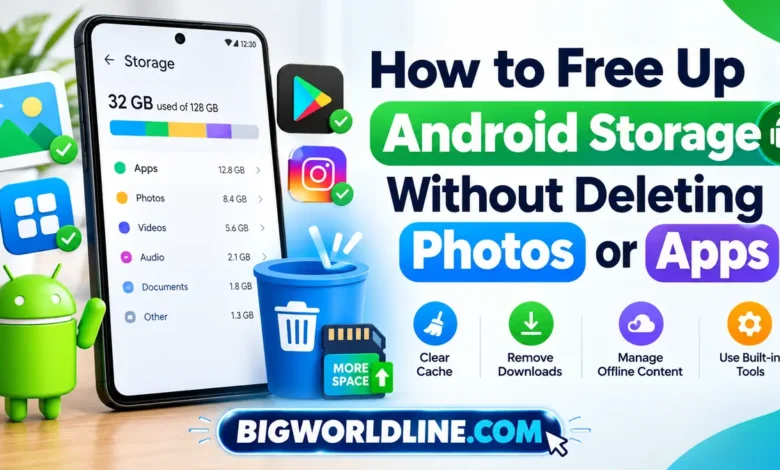
Running out of storage on your Android phone can be frustrating, especially when you want to keep your favorite photos, videos, and apps. You might see constant storage warnings, struggle to download files, or notice that your phone cannot install updates—even though you do not want to delete anything important.

The good news is that you can often free up Android storage without deleting photos or apps by clearing temporary files, removing unnecessary downloads, managing offline content, and identifying which apps consume the most space. These methods can help you reclaim storage while keeping your personal memories and everyday tools intact.
The exact steps may vary depending on your Android version and phone manufacturer, but most Android devices offer several built-in storage management options.
Key Takeaways
- Clear app caches: Remove temporary files without deleting your personal data in most cases.
- Remove unwanted downloads: Delete old documents, installation files, and duplicate downloads you no longer need.
- Manage offline content: Remove downloaded music, videos, and maps while keeping the corresponding apps installed.
- Use built-in storage tools: Android settings can help identify large files and unnecessary data.
- Avoid risky cleaning methods: Do not clear app storage or delete unfamiliar system files without understanding the consequences.
- Protect your memories: Back up important files before making major storage changes.
1. Check What Is Taking Up Space on Your Android Phone
Before deleting or cleaning anything, find out where your storage is going. Android phones typically categorize storage into apps, images, videos, audio, documents, system files, and other data.
Knowing which category uses the most space helps you choose the safest cleanup method.
Step-by-step instructions
- Open Settings on your Android phone.
- Tap Storage or search for “Storage” in Settings.
- Wait for the storage breakdown to load.
- Review the categories consuming the most space.
- Open the relevant category to identify potential cleanup opportunities.
On some Samsung phones, you may need to open Settings > Device care > Storage. Other manufacturers may use slightly different menu names.
Practical tip: If apps consume most of your storage, focus on cache files and offline downloads. If documents and downloads take up significant space, review those folders before touching your photo library.
2. Clear App Cache Without Deleting Photos or Apps
One of the easiest ways to reclaim storage is to clear cached data from apps you use regularly.
Apps such as browsers, social media platforms, shopping apps, and streaming services store temporary files to load content faster. Over time, these files can occupy hundreds of megabytes or more, depending on your usage.
Clearing the cache removes temporary files rather than uninstalling the app.
How to clear an app’s cache
- Open Settings.
- Select Apps or Apps & notifications.
- Choose an app that uses substantial storage.
- Tap Storage & cache or Storage.
- Select Clear cache.
- Repeat for other apps where cached data is substantial.
Avoid tapping Clear storage, Clear data, or similarly named options unless you understand their effects.
Which apps should you clean first?
Consider checking:
- Web browsers such as Chrome.
- Social media apps that load lots of images and videos.
- Streaming apps that temporarily store content.
- Shopping apps that accumulate product images.
- Other apps with unusually large cache sizes.
Important: Cache clearing may provide only a small amount of space on some phones. Apps may rebuild their caches as you continue using them, so the storage savings are not always permanent.
3. Delete Unnecessary Downloads Instead of Personal Photos
Your Downloads folder can quietly accumulate files you no longer need. Old PDFs, shared documents, installation packages, and duplicate attachments may occupy valuable space without serving any purpose.
Cleaning this folder is often safer than removing photos or uninstalling apps.
How to clean your Downloads folder
- Open the Files app or your phone’s file manager.
- Select Downloads.
- Sort files by size or date, if the option is available.
- Review large files and documents you recognize.
- Select only the files you no longer need.
- Tap Delete and confirm.
Before removing anything, check whether a file is important for work, school, travel, or personal records.
You can also look for old APK installation files. These files are used to install Android apps and may no longer be necessary after installation, but keep them if you need them for a future reinstall.
Safety tip: Avoid deleting unfamiliar files from Android system folders simply because their names look confusing. Some files support apps or device functions.
4. Remove Offline Downloads From Streaming Apps
Music, movies, podcasts, and downloaded videos can consume several gigabytes of storage. Fortunately, you can often remove this content without uninstalling the app or deleting personal photos.
Apps such as music and video streaming services commonly let you manage downloaded content from within their own settings.
Steps to reclaim space
- Open the streaming app.
- Find its Downloads, Offline, or Downloaded content section.
- Review videos, playlists, podcasts, or albums saved for offline use.
- Remove content you have already watched or no longer need offline.
- Check your phone’s storage again.
Some apps also allow you to reduce download quality or automatically remove played episodes.
For example, downloading a film in high resolution may use considerably more space than downloading the same film at a lower resolution. Choosing a lower download quality can help prevent storage problems in the future.
Remember: Removing offline content does not necessarily remove the content from your account. You can usually stream it again when you have an internet connection, subject to the app’s availability and subscription terms.
5. Clean Up WhatsApp and Other Messaging App Media
Messaging apps can become major storage consumers because conversations often contain forwarded videos, voice messages, documents, and repeated media downloads.
You do not need to delete your entire chat history to reduce this storage usage.
How to manage WhatsApp storage
- Open WhatsApp.
- Tap the menu or settings icon.
- Go to Settings > Storage and data > Manage storage.
- Review chats and files that use the most space.
- Select large videos, documents, or other unnecessary items.
- Delete only the files you are comfortable losing.
Menu names may differ slightly by version.
If you want to preserve important conversations, review your backup settings before removing chat media. A backup does not guarantee that every deleted file can be restored, so do not rely on it as your only safeguard.
Prevent messaging apps from filling storage again
- Disable automatic media downloads for groups where appropriate.
- Download large videos only when needed.
- Review forwarded files periodically.
- Avoid saving every received image or video to your device.
These small changes can help control storage growth without affecting the apps you rely on.
6. Use Android’s Built-In Storage Recommendations
Many Android phones include storage management tools that identify unnecessary files and suggest ways to reclaim space.
Google’s Files app may also offer cleanup recommendations, depending on your device and installed version.
Try these steps
- Open Settings > Storage.
- Look for options such as Free up space, Clean, or Storage manager.
- Review the suggested files and categories.
- Read each recommendation carefully.
- Select only items you recognize and no longer need.
You can also explore the official Android Help website for device-specific guidance on managing storage and troubleshooting Android problems.
Do not automatically approve every cleanup suggestion. Some tools identify large files or duplicate items that may still be important to you. Review the selections before confirming any deletion.
7. Remove Unused Offline Maps and Other Downloaded Data
Navigation apps can store large map areas for offline use. If you downloaded maps for a previous trip, you may no longer need them.
Removing outdated offline maps can free up storage without affecting your installed navigation app.
How to remove offline maps
In Google Maps:
- Open Google Maps.
- Tap your profile picture.
- Select Offline maps.
- Review your downloaded map areas.
- Choose an outdated map and remove it if you no longer need offline access.
You can download the map again later when necessary.
Also check other apps that store offline content, including language-learning tools, podcast players, music apps, and document readers.
The key is to distinguish between the app itself and the extra content stored inside it. Removing unnecessary offline content lets you keep the app installed while recovering space.
8. Empty Trash and Recycle Bin Folders
Deleting a file does not always free its storage immediately. Some file managers and gallery apps move deleted items to a Trash or Recycle Bin folder, where they remain for a limited period.
If you have already deleted files you no longer need, emptying the relevant trash folder may recover additional space.
What to check
- Open your file manager and look for Trash or Recycle bin.
- Check the trash folder in your gallery app.
- Review the contents carefully before permanently deleting anything.
- Empty the folder only if you are certain you do not need to restore those files.
Be especially careful with photo and cloud storage apps. Depending on the service and synchronization settings, deleting or permanently removing an item may affect other devices or cloud copies. Confirm what will be deleted before proceeding.
If your goal is to preserve every photo, skip this step unless you are certain the items in the trash are unwanted.
9. Move Files to Cloud Storage or an External Drive
If your phone regularly runs out of space, consider moving selected files rather than deleting them permanently.
Cloud services and external storage can help you retain documents, recordings, and other personal files while reducing the amount of space they occupy on your device.
Option A: Use cloud storage
You can upload selected files to a cloud storage service and verify that the upload completed successfully before removing the local copies.
For photos, services with backup or storage-management features may offer ways to remove local copies while keeping backed-up versions online. Read the service’s instructions carefully because deleting a file normally is not always the same as removing only its local copy.
Option B: Transfer files to a computer or external drive
- Connect your Android phone to a computer using a USB cable.
- Select the file transfer option if prompted.
- Copy the files you want to preserve.
- Open the copied files on the destination device to verify they work.
- Remove local copies only after confirming that the transfer succeeded.
A USB-C flash drive or compatible external storage device may also work with your phone.
Prefer wireless transfer over using a USB cable? Check out our complete guide on how to transfer files from Android to Windows wirelessly.
Best practice: Keep at least one verified backup of important files before removing their local copies.
10. Prevent Android Storage From Filling Up Again
Once you have recovered some space, a few adjustments can help keep your phone running comfortably.
Make these habits part of your routine
- Review storage monthly: Check which apps and folders are growing.
- Manage downloads: Remove obsolete documents and installation files.
- Limit automatic media downloads: Especially in busy group chats.
- Use sensible streaming settings: Avoid downloading more content than you need.
- Keep some free space available: Android needs working space for temporary files, app activity, and updates.
- Update apps carefully: Updates can require temporary extra space, so address storage warnings before installing large updates.
Restarting your phone may help resolve temporary glitches, but it is not a reliable way to reclaim significant storage. Likewise, a factory reset is unnecessary for routine storage cleanup and should not be your first option.
Frequently Asked Questions
1. How can I free up Android storage without deleting photos?
Start by clearing app caches, removing unwanted downloads, managing offline streaming content, and reviewing messaging app media. You can also move selected files to verified cloud storage or an external drive.
These methods let you recover space while keeping your photo library intact.
2. Does clearing the cache delete personal data?
Generally, clearing an app’s cache removes temporary files, not your personal documents, account information, or saved photos. However, the exact behavior can vary by app, so check the selected option carefully.
Do not confuse Clear cache with Clear storage or Clear data, which can remove local app information and reset the app.
3. Why is my Android storage full even after deleting files?
Deleted files may still be in a Trash or Recycle Bin folder. Storage may also be occupied by app caches, offline downloads, messaging media, system data, or files that have not yet been removed from the device.
Check your phone’s storage breakdown and review the relevant folders to identify the remaining space usage.
4. Is it safe to use Android cleaner apps?
Some storage management apps provide useful file reviews, but not every cleaner app is necessary or trustworthy. Start with Android’s built-in tools and reputable file managers rather than granting broad permissions to unfamiliar apps.
Avoid apps that promise unrealistic performance improvements, demand unnecessary access, or pressure you into installing additional software.
Final Thoughts
You do not have to sacrifice your favorite photos or uninstall useful apps just because your Android phone is running low on storage. In many cases, clearing cached files, removing unnecessary downloads, managing offline content, and reviewing messaging media can recover a meaningful amount of space.
Start by checking your storage breakdown, then tackle the largest categories one at a time. Review every deletion, protect important files with verified backups, and make storage management a regular habit.
With a few careful adjustments, you can keep your photos, apps, and personal memories while giving your Android phone the breathing room it needs.
Recommended Reading:
Experiencing audio lag or sync problems when using Bluetooth devices with your PC? Read our step-by-step guide on how to fix Windows 11 Bluetooth audio delay.