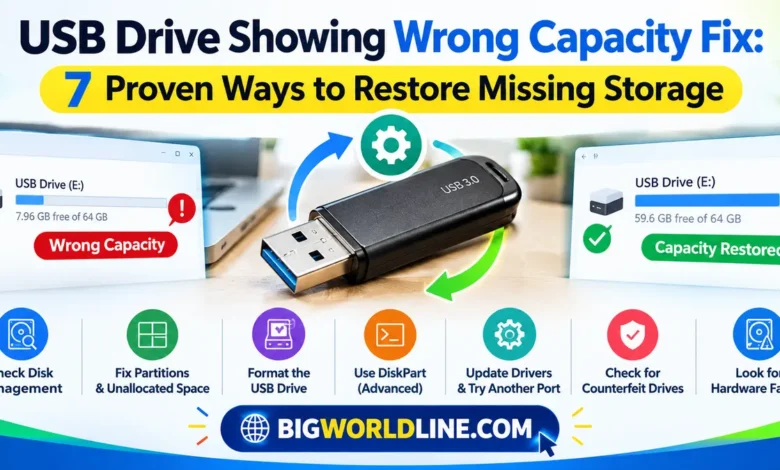
A USB flash drive that suddenly shows the wrong storage capacity can be confusing. You might have a 64GB drive that displays only 8GB, a 32GB flash drive that appears almost full despite containing few files, or a USB stick that shows just a few megabytes instead of its advertised capacity.
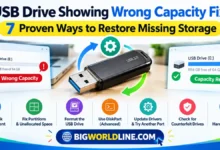
The good news is that this problem does not always mean your USB drive is damaged. Incorrect partitions, corrupted file systems, formatting issues, outdated drivers, and counterfeit storage devices can all cause Windows to report the wrong capacity.
In this guide, you will learn how to fix a USB drive showing the wrong capacity using practical troubleshooting methods, from simple checks to advanced partition repair. Each solution includes clear steps to help you identify the cause and recover usable storage safely.
Key Takeaways
- Check Disk Management first to determine whether your USB drive has unallocated or hidden space.
- Remove incorrect partitions if they prevent Windows from using the drive’s full capacity.
- Format the USB drive carefully to repair certain file system problems.
- Use DiskPart only when necessary, because selecting the wrong disk can erase important data.
- Test suspicious drives to identify counterfeit capacity or failing flash memory.
- Back up important files before changing partitions, formatting, or running disk repair commands.
Why Is Your USB Drive Showing the Wrong Capacity?
Before attempting a USB drive showing wrong capacity fix, it helps to understand what might be causing the problem. The correct solution depends on whether the storage is missing, unavailable, corrupted, or physically unreliable.
Here are the most common reasons:
1. Incorrect or Multiple Partitions
A USB drive may contain several partitions created by bootable operating systems, recovery tools, or previous formatting attempts. Windows might assign a drive letter to only one partition, making the remaining space appear unavailable in File Explorer.
2. Corrupted File System
A damaged file system can prevent Windows from reading the drive correctly. The drive might display an incorrect amount of free space, request formatting, or behave inconsistently.
3. Unallocated Storage Space
If a partition was deleted or resized incorrectly, some of the USB drive’s capacity may remain unallocated. Windows cannot store ordinary files in that space until you create a usable partition.
4. Incorrect Formatting or Bootable USB Software
Tools used to create bootable USB drives can change partition layouts. For example, a flash drive previously used to install Linux or Windows may appear smaller because its original partition structure has changed.
5. Counterfeit or Failing USB Flash Memory
Some inexpensive USB drives are advertised with more storage than they physically contain. Others develop hardware problems that cause inconsistent capacity readings, write failures, or disappearing files.
A USB drive that consistently reports an incorrect physical capacity may require replacement rather than a software repair.
Method 1: Check the USB Drive in Windows Disk Management
Disk Management is the best starting point because it shows the drive’s partitions and unallocated space.
Follow these steps:
- Connect your USB drive to your computer.
- Press Windows + X and select Disk Management.
- Locate your USB drive by comparing its total size with its advertised capacity.
- Examine the partitions and any areas labeled Unallocated.
- Check whether the drive contains multiple partitions or a partition that occupies only a small portion of the available space.
For example, a 64GB USB drive might contain an 8GB partition and approximately 50GB of unallocated space.
In this situation, the missing capacity is likely related to the partition layout rather than a physically smaller drive.
What to do next: If the missing space is unallocated, proceed to Method 2. If the entire drive appears smaller than expected, try another USB port and computer before moving to the advanced checks.
Important: Do not delete or format partitions containing files you need. These actions can make data recovery more difficult.
Method 2: Create a New Partition to Recover Missing Storage
If Disk Management shows unallocated space, you may be able to restore the missing capacity by creating a partition.
This method is appropriate when you do not need the existing contents of the USB drive or when the unallocated space can safely be used separately.
Step-by-Step Instructions
- Open Disk Management.
- Find the unallocated area on your USB drive.
- Right-click the unallocated space.
- Select New Simple Volume, if the option is available.
- Follow the wizard and choose the amount of space you want to use.
- Assign a drive letter.
- Select a compatible file system, such as exFAT for general use across modern computers and other supported devices.
- Complete the wizard.
Once the process finishes, open File Explorer and check the available storage.
What If the USB Drive Has Several Partitions?
If you want to use the entire drive as one volume, the existing partition layout may need to be rebuilt. However, deleting partitions removes access to the data stored on them and can erase their contents when the space is reformatted.
Back up your files first. If the drive contains important data, do not delete partitions simply to make the capacity look correct.
Method 3: Format the USB Drive to Fix File System Errors
Formatting can resolve some file system problems and create a fresh, usable volume. However, it will not repair physically defective memory or turn counterfeit storage into genuine capacity.
Warning: Formatting erases the files stored on the selected volume. Back up anything important before continuing.
How to Format a USB Drive in Windows
- Open File Explorer by pressing Windows + E.
- Select This PC.
- Right-click your USB drive.
- Choose Format.
- Select a suitable file system.
- Leave the default allocation unit size unless you have a specific reason to change it.
- Click Start and wait for the process to finish.
Choose the file system according to your needs:
- exFAT: A practical choice for transferring large files between supported Windows and macOS devices.
- FAT32: Useful for compatibility with many older devices, but individual files cannot exceed 4GB.
- NTFS: Suitable for Windows-focused storage, though some other devices may not support writing to NTFS drives.
After formatting, check the drive’s total capacity in File Explorer and Disk Management.
If the drive still shows the wrong size, investigate its partitions or hardware rather than repeatedly formatting it.
Method 4: Restore USB Capacity Using DiskPart
DiskPart is a built-in Windows command-line utility that can remove partitions and create a new volume. It is useful when Disk Management cannot restore the desired partition layout.
Warning: The clean command removes partition information from the selected disk. Choosing your computer’s internal drive by mistake can cause serious data loss. Do not continue unless you have identified the USB drive correctly and backed up any required data.
Step-by-Step DiskPart Repair
- Connect the USB drive.
- Open the Start menu and search for
cmd. - Right-click Command Prompt and select Run as administrator.
- Enter the following command:
diskpart- Display the connected disks:
list disk- Identify your USB drive using its reported size. Be especially careful when internal and external drives have similar capacities.
- Select the correct disk, replacing
Nwith its actual disk number:
select disk N- Verify your selection:
detail diskIf you are not certain that the selected disk is the USB drive, stop here.
- Once the disk is positively identified and its data is backed up, remove its partition information:
clean- Create a new primary partition:
create partition primary- Select the new partition:
select partition 1- Format it as exFAT:
format fs=exfat quick- Assign a drive letter:
assign- Exit DiskPart:
exitOpen File Explorer to check the result.
This procedure rebuilds the drive’s partition layout, but it does not repair defective flash memory. If DiskPart reports a smaller disk size than expected, or the drive continues to malfunction, proceed to the hardware checks.
Method 5: Update USB Drivers and Try Another Port
Sometimes, Windows may not communicate reliably with a USB storage device because of driver problems, a faulty port, or an unstable connection.
Try these simple checks before performing additional destructive repairs.
- Disconnect the USB drive safely.
- Connect it to another USB port, preferably one directly on the computer rather than through a hub.
- Test the drive on another computer.
- Open Device Manager by right-clicking the Start button.
- Expand Disk drives and locate the USB device.
- If the device appears to have a driver problem, use Windows Update or the computer manufacturer’s support resources to obtain appropriate updates.
You can also disconnect other USB storage devices temporarily to reduce the chance of selecting the wrong disk during troubleshooting.
If the drive displays the same incorrect capacity on multiple computers, the problem is more likely to involve its partition layout, firmware, or physical hardware.
Method 6: Check Whether the USB Drive Is Counterfeit
A counterfeit USB drive may claim to offer 128GB, 256GB, or even more storage while containing much less physical memory.
These devices can initially display their advertised capacity because their controllers report misleading information. Problems often appear when you save more data than the actual memory can hold.
How to Test the Real Capacity
Use a reputable storage-testing utility that writes and verifies test data across the drive.
For example, Windows users can investigate H2testw, a USB and storage capacity testing utility.
Before testing:
- Back up all existing files.
- Ensure the test covers the available storage.
- Allow the test to finish without disconnecting the drive.
- Review the reported write and verification errors.
A test that fails before reaching the advertised capacity may indicate counterfeit storage or defective memory. However, connection problems, write protection, and other hardware faults can also cause failures, so a single result is not definitive proof of fraud.
If the drive repeatedly fails verification, stop storing important data on it and request a refund or replace it with a reputable product.
Method 7: Check for Physical USB Drive Failure
If none of the previous methods restores the expected capacity, the USB drive may have a hardware problem.
Watch for these warning signs:
- The reported capacity changes between connections.
- Files disappear after being copied.
- The drive disconnects without warning.
- Formatting repeatedly fails.
- Windows reports write errors or I/O errors.
- The drive becomes unusually hot during normal use.
Try the drive on another computer and avoid repeated formatting attempts if it contains important information.
If the drive is failing and its files matter, consider professional data recovery. Flash memory failures can become harder to recover from when additional writes are performed.
If the drive is empty or its contents are backed up, replacing it is often more practical than attempting firmware modifications or unofficial repair utilities.
Why Does a 64GB USB Drive Show Less Than 64GB?
A USB drive advertised as 64GB will normally show less than 64GB in Windows, even when it is working correctly.
Manufacturers generally calculate capacity using decimal units, where 1GB equals 1,000,000,000 bytes. Windows may display the same byte count using binary-based units, which are technically called gibibytes (GiB).
As a result, a drive marketed as 64GB typically provides around 59.6GiB before accounting for formatting and other small differences.
This is normal and does not automatically indicate a problem.
However, a 64GB drive that displays only 8GB, or a 128GB drive that reports approximately 16GB, deserves further investigation.
Frequently Asked Questions
1. Can I restore the full capacity of my USB drive without losing data?
Sometimes. If the missing capacity is caused by a drive letter issue or an unused partition, you may be able to resolve the problem without deleting existing files.
However, rebuilding partitions, formatting the drive, or using DiskPart’s clean command can destroy access to stored data. Back up important files before making changes.
2. Why does my USB drive show the wrong capacity after formatting?
Formatting normally changes the file system of a volume, not the physical capacity of the device. If the reported capacity remains incorrect, the drive may contain multiple partitions, unallocated space, counterfeit memory, or a hardware fault.
Check the complete disk layout in Windows Disk Management before formatting again.
3. Does DiskPart restore the original USB capacity?
DiskPart can rebuild a partition layout and make previously unavailable space usable when the underlying storage is genuine and functioning correctly.
It cannot increase the physical memory of a USB drive or reliably repair defective flash memory. Always verify the selected disk before using destructive commands.
4. How can I tell whether my USB drive is fake or damaged?
Test the drive on another computer, inspect its reported capacity, and run a full write-and-verify test using a reputable utility. Repeated verification failures or missing files can indicate counterfeit storage or failing memory.
If the device consistently fails testing, avoid trusting it with important files and contact the seller or replace the drive.
Conclusion
A USB drive showing the wrong capacity can result from a simple partition problem, a corrupted file system, or a more serious hardware issue. The most effective solution is to identify the cause before changing the drive.
Start with Windows Disk Management, recover unallocated space where appropriate, and use formatting or DiskPart only when you understand the data-loss risks. If the drive continues to report an incorrect capacity across multiple computers, test its real storage capacity and consider hardware failure.
The most important rule is simple: protect your data first, repair the partition layout second, and replace the drive if its physical memory cannot be trusted.
Recommended Reading:
Looking to optimize your phone along with your PC devices? Learn how to stop Android apps from running in the background without breaking notifications.