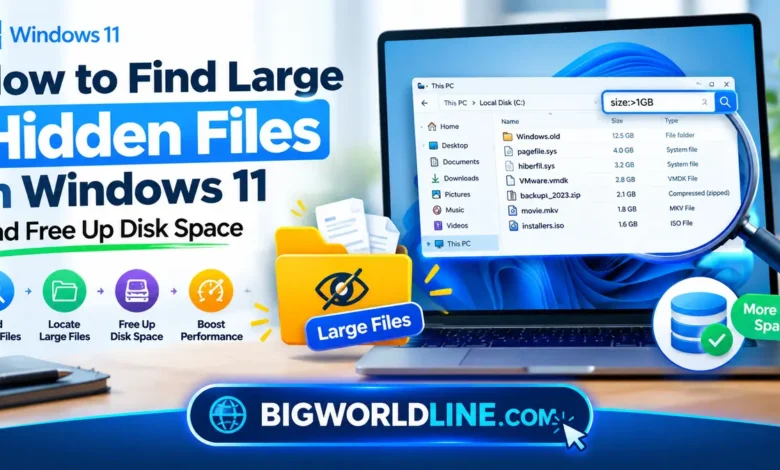
Running out of storage on your Windows 11 PC can be frustrating, especially when your drive appears full but your folders contain very few files. The problem often comes from hidden files, application data, temporary files, old backups, or system files that Windows does not display by default.


The good news is that you do not need expensive software to investigate the problem. Windows 11 includes several built-in tools that help you find large hidden files, identify storage-hungry folders, and reclaim disk space without accidentally deleting important data.
This guide explains the most effective methods, from enabling hidden-file visibility in File Explorer to using PowerShell for advanced searches.
Key Takeaways
- Enable hidden files: Use File Explorer to reveal hidden files and folders.
- Sort by file size: Quickly identify large files in accessible folders.
- Check Windows storage: Use Storage settings to locate categories consuming the most space.
- Search with PowerShell: Find large files across selected directories using a command.
- Delete files carefully: Avoid removing protected system files, unfamiliar application data, or files required for Windows to operate.
Why Are Hidden Files Taking Up Space in Windows 11?
Windows and installed applications create files that are not always visible during everyday browsing. Some are necessary for normal operation, while others accumulate as you install programs, download updates, and use your computer.
Common sources of hidden storage usage include:
- AppData folders: Store application settings, browser caches, temporary data, and user-specific files.
- Temporary files: Created by Windows and applications during routine tasks.
- Windows update files: Support updates, installations, and recovery operations.
- System restore data: Helps Windows return to an earlier working state.
- Virtual machines: Virtual hard disk files can occupy tens or hundreds of gigabytes.
- Backup files: Old backups, disk images, and recovery files may consume substantial space.
- Cloud synchronization folders: Locally downloaded files can occupy space even when cloud copies exist.
Not every hidden file is unnecessary. Your goal should be to identify which files are consuming space and determine whether they can be safely removed.
Method 1: Show Hidden Files in Windows 11 File Explorer
The simplest way to start is by making hidden files and folders visible. This allows you to inspect locations that might otherwise appear empty.
Step 1: Open File Explorer
Press Windows + E to open File Explorer. Navigate to the drive you want to investigate, usually Local Disk (C:).
Step 2: Enable Hidden Items
Follow these steps:
- Click View in the File Explorer toolbar.
- Select Show.
- Click Hidden items.
Windows will now display items marked as hidden, often with slightly faded icons.
Step 3: Inspect Common Storage Locations
Check these locations first:
C:\Users\YourUsername\DownloadsC:\Users\YourUsername\AppData\LocalC:\Users\YourUsername\AppData\RoamingC:\Users\YourUsername\DesktopC:\Users\YourUsername\Documents
Replace YourUsername with your actual Windows account name.
The AppData folder is particularly worth investigating because applications can store large caches, temporary files, and other data there.
Important: Do not delete everything inside AppData. Many applications depend on these files to retain settings, sessions, and other information.
Method 2: Find Large Hidden Files Using File Explorer Search
After enabling hidden items, you can search for files that exceed a particular size.
Step 1: Open the Drive or Folder You Want to Search
Open File Explorer and select a specific folder or drive. Searching a particular location first can make the process easier to manage.
Step 2: Search for Large Files
Click the search box in the upper-right corner and enter:
size:>1GB
This search filter looks for files larger than 1 GB in the selected search location.
You can also try these size filters:
size:>100MB— files larger than 100 MB.size:>500MB— files larger than 500 MB.size:>1GB— files larger than 1 GB.size:>4GB— files larger than 4 GB.
Search behavior can vary with indexing, folder permissions, and the selected location. A search may not discover every hidden or protected file on your drive.
Step 3: Sort the Results by Size
If the results include a Size column, click its heading to sort the files. If necessary, switch to Details view using View > Details.
Look for large files such as virtual machine disks, downloaded installation packages, old video files, and backup archives.
Before deleting anything, right-click the file, choose Properties, and confirm its location, size, and file type.
Method 3: Use Windows 11 Storage Settings
Windows Storage settings provide a useful overview of where your disk space is going. This method is particularly helpful if you do not know which folder to investigate first.
If your Android phone is also running low on storage, check out our guide on how to free up Android storage without deleting photos for practical ways to manage space without losing your memories.
Step 1: Open Storage Settings
- Press Windows + I to open Settings.
- Select System.
- Click Storage.
Windows will calculate how storage is being used and display categories such as Installed apps, Temporary files, Documents, and System & reserved.
Step 2: Identify the Largest Categories
Click the categories to examine their contents and available cleanup options.
Pay particular attention to:
- Temporary files: May include disposable temporary data and certain update-related files.
- Installed apps: Helps identify applications using substantial storage.
- Other: Can include files and folders that do not fit neatly into other categories.
- System & reserved: Includes Windows-related storage that should not be cleaned manually.
The exact categories and their sizes vary by computer.
Step 3: Remove Unnecessary Files
If Windows identifies temporary files you no longer need, select the appropriate items and review the description before removing them.
Be especially careful with the Downloads category or checkbox if it appears. It may include files you deliberately saved, rather than disposable temporary data.
For additional guidance, consult Microsoft’s official documentation on managing drive space with Storage settings in Windows.
Method 4: Find Large Hidden Files with PowerShell
PowerShell is useful when File Explorer searches are incomplete or you want a more precise list of large files.
This method can scan a selected folder recursively and display files larger than a specified size.
Step 1: Open PowerShell
Right-click the Start button and select Terminal. Open a PowerShell tab if one is not already active.
You generally do not need administrator privileges to scan your own folders. Access to some protected locations may be restricted.
Step 2: Run a Large-File Search
To find files larger than 500 MB in your user profile, run:
Get-ChildItem "$env:USERPROFILE" -File -Force -Recurse -ErrorAction SilentlyContinue |
Where-Object { $_.Length -gt 500MB } |
Sort-Object Length -Descending |
Select-Object FullName, @{Name="SizeGB";Expression={[math]::Round($_.Length / 1GB, 2)}}
Here is what the command does:
-Fileselects files rather than directories.-Forceincludes hidden items that PowerShell can access.-Recursesearches subfolders.-ErrorAction SilentlyContinueskips displaying access-related errors.Where-Objectfilters files larger than 500 MB.Sort-Objectlists the largest files first.Select-Objectdisplays the full path and size in gigabytes.
The search may take several minutes if your profile contains many files.
Step 3: Search a Different Location
To search a particular folder, replace $env:USERPROFILE with its path.
For example, to inspect a secondary drive, use:
Get-ChildItem "D:\" -File -Force -Recurse -ErrorAction SilentlyContinue |
Where-Object { $_.Length -gt 1GB } |
Sort-Object Length -Descending |
Select-Object FullName, Length
This lists accessible files larger than 1 GB on the D: drive.
Limitation: PowerShell may skip protected files or folders because of permission restrictions. A clean result does not prove that every hidden file on the drive has been checked.
Do not add automatic deletion commands to these searches. Review the results and verify each file before taking action.
Method 5: Check AppData for Hidden Storage Hogs
The AppData folder deserves special attention because applications often store data there without making it obvious to users.
How to Open AppData
- Press Windows + R.
- Type
%LOCALAPPDATA%. - Press Enter.
This opens your account’s Local AppData folder, typically located at:
C:\Users\YourUsername\AppData\Local
Look for application folders containing unusually large caches, logs, downloaded content, or temporary files.
You can also open %APPDATA% through the Run dialog to access the Roaming AppData folder.
If you frequently transfer files between devices, our guide on how to transfer files from Android to Windows wirelessly can help you manage files without relying on a USB cable.
What Can You Safely Remove?
Potential cleanup candidates include temporary files and caches that an application can recreate. However, the correct procedure depends on the application.
For example, closing a browser and using its built-in cache-clearing settings is generally safer than manually deleting unknown folders from its profile directory.
Avoid deleting entire application folders unless you understand what they contain and have confirmed that the application no longer needs them.
Method 6: Find Large System Files Without Damaging Windows
Some of the biggest files on your drive are associated with Windows itself. These require extra caution because removing them incorrectly can affect system stability or recovery options.
Examples include:
hiberfil.sys— supports hibernation and related power-management features.pagefile.sys— supports virtual memory.swapfile.sys— supports certain Windows memory-management functions.- System restore data — helps recover from some system problems.
- Windows component and update files — support Windows maintenance and servicing.
Some of these files are protected and may not appear in ordinary searches. Their sizes and visibility depend on your system configuration.
How to Manage Them Safely
Use Windows settings instead of manually deleting protected files.
- Hibernation: If you do not use hibernation, you can review whether disabling it is appropriate for your PC. Doing so affects hibernation functionality.
- Virtual memory: Keep Windows-managed paging settings unless you have a specific technical reason to change them.
- System restore: Review restore-point storage through System Protection settings rather than deleting protected data manually.
- Windows updates: Use Storage settings and supported Windows cleanup tools.
Never force-delete protected system files simply because they occupy several gigabytes. Their presence is often normal and necessary.
Best Practices for Freeing Up Disk Space Safely
Finding large files is only half the job. You also need to decide which ones can be removed without losing important data.
Follow these practical rules:
- Check the full file path. A large file in Downloads is different from a similarly sized file in a Windows system folder.
- Confirm the file type. Disk images, virtual disks, backups, and application databases may contain important information.
- Use built-in cleanup tools first. Windows Storage settings are a safer starting point than manual system-folder cleanup.
- Back up important files. Preserve documents, photos, project files, and backups before removing anything.
- Empty the Recycle Bin when appropriate. Deleted files may continue consuming disk space until the bin is emptied.
- Review cloud synchronization settings. Use the cloud service’s supported option to remove a local copy while retaining the online version, if available. If you experience connectivity problems while using your laptop, read our guide on fixing a laptop that disconnects from Wi-Fi when the lid closes to understand the possible causes and solutions.
- Recheck your free space. Return to Settings > System > Storage after cleanup to see whether the changes made a difference.
If you regularly run low on storage, enable Storage Sense to help manage eligible temporary files and other supported cleanup tasks automatically.
Frequently Asked Questions
1. How do I find hidden files taking up space in Windows 11?
Open File Explorer, select View > Show > Hidden items, and inspect folders such as AppData and Downloads. Use a search filter like size:>500MB to locate large files, or run a PowerShell search for more detailed results.
2. Why is my C: drive full when I cannot see any large files?
Windows may be using space for protected system files, virtual memory, restore points, application caches, temporary files, or update-related data. Storage settings can help identify the main categories, although some protected usage may require separate investigation.
3. Can I delete hidden files in Windows 11 safely?
Some hidden files, including disposable caches and certain temporary files, can be removed safely. Others are essential for Windows or installed applications, so always verify the location and purpose of a file before deleting it.
4. What is the fastest way to find files larger than 1 GB?
Open File Explorer, navigate to the folder you want to search, and enter size:>1GB in the search box. For a more detailed scan, use PowerShell with -Force, -Recurse, and a file-size filter, keeping in mind that protected locations may be inaccessible.
Conclusion
When your Windows 11 drive runs out of space unexpectedly, hidden files and overlooked storage locations are worth investigating before you start deleting random folders.
Begin by enabling hidden items in File Explorer, searching for files larger than 500 MB, and checking the Storage settings dashboard. If those methods do not reveal the problem, PowerShell can help identify large files in accessible directories.
Most importantly, focus on understanding what a file does before removing it. With a careful search and a little routine maintenance, you can recover valuable disk space while keeping Windows 11 stable and your personal data safe.
For more Windows 11 troubleshooting tips, you may also find our guide on fixing Bluetooth audio delay in Windows 11 helpful if you’re experiencing audio lag while using wireless headphones or speakers.