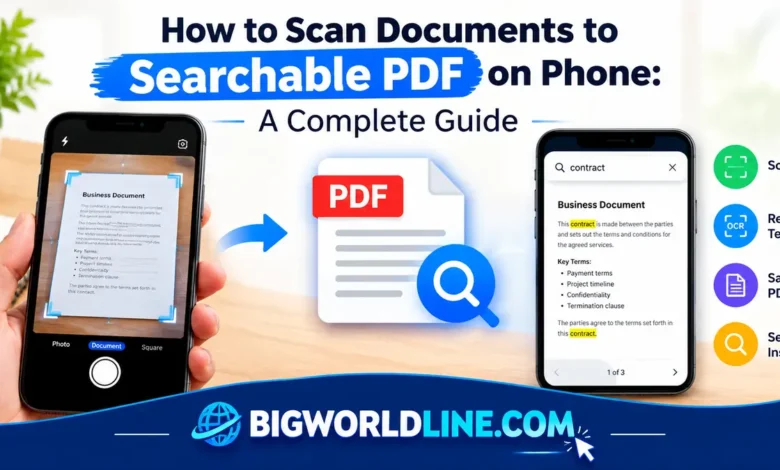
Scanning documents with your phone is easy, but creating a PDF you can actually search is even more useful. Instead of scrolling through dozens of pages to find a name, date, or important paragraph, you can use Optical Character Recognition (OCR) to turn printed text into searchable digital content.
Whether you need to digitize office paperwork, save receipts, organize study notes, or share signed forms, your smartphone can handle the job without a traditional scanner. The key is choosing the right scanning method and making sure your PDF includes a recognized text layer.
This guide explains how to scan documents to searchable PDF on phone, which apps to use, how to improve scan quality, and what to do when your PDF contains images instead of searchable text.
Key Takeaways
- You can scan paper documents using your phone’s built-in tools or a dedicated scanning app.
- A searchable PDF requires OCR, which recognizes printed text and makes it searchable.
- Google Drive, Apple Notes, and Adobe Scan are practical options, depending on your device and requirements.
- Good lighting, flat pages, and sharp images improve OCR accuracy.
- Always check whether a scanning app supports searchable PDF export before saving important documents.
What Is a Searchable PDF?
A searchable PDF is a document that lets you find words or phrases using the search function. Unlike a PDF containing only pictures of pages, a searchable PDF includes a text layer that software can recognize and select.
For example, imagine scanning a 20-page contract. With an image-only PDF, you might need to inspect every page to find a particular clause. With a searchable PDF, you can search for a phrase such as “payment terms” and jump to the relevant location.
This functionality is usually powered by Optical Character Recognition (OCR).
How OCR Works on Your Phone
OCR analyzes the letters and words visible in a document image, then converts them into machine-readable text. Depending on the app, the recognized text may be embedded in the PDF, stored separately, or made available through a document search feature.
A crucial distinction is that a PDF is not automatically searchable just because it contains text on the screen. If your scanning app saves only page images, you may need to run OCR before the document becomes searchable.
How to Scan Documents to Searchable PDF on Phone
The process varies slightly between Android and iPhone, but the basic steps are similar: capture the document, improve the scan, enable or apply OCR, and save the finished PDF.
Method 1: Scan Documents on Android Using Google Drive
Google Drive is a convenient starting point for many Android users because document scanning is built into the mobile app. However, OCR and searchable PDF behavior can vary, so verify the resulting file rather than assuming every scan contains a searchable text layer.
Step 1: Open Google Drive
- Open the Google Drive app on your Android phone.
- Sign in if necessary.
- Tap the camera or scan option, if available. On some versions, you may need to tap the + (New) button first and select Scan.
Menu labels can differ by app version and device.
Step 2: Capture Your Document
Place the paper on a flat surface with a contrasting background. Hold your phone directly above it and make sure all four corners are visible.
Capture the page when the text looks sharp. If the app detects the document automatically, review its crop before continuing.
Step 3: Adjust and Add Pages
After taking the picture, check the preview. Most scanning interfaces provide tools to crop the page, rotate it, apply filters, or retake a blurry image.
For multi-page documents, continue scanning until every page has been added in the correct order.
Step 4: Save the PDF
Tap Save, choose a descriptive filename, and select the appropriate Google Drive folder. If the app offers PDF as the output format, choose it.
Step 5: Check Whether the PDF Is Searchable
Open the saved file and try to select or search for a word from the original document. If the text cannot be found, the scan may contain only page images.
In that case, use an OCR-enabled app or tool to recognize the text and export a searchable PDF.
For additional guidance on Android features and compatible devices, visit the official Android website.
Method 2: Scan Documents on iPhone Using Apple Notes
Apple Notes offers a built-in document scanner that is useful for capturing paperwork without installing another app. Its text-recognition capabilities depend on the iOS version, device, language, and the specific workflow you use.
Step 1: Open Notes
Open the Notes app on your iPhone and create a new note. Tap the attachment or camera button, then select Scan Documents.
Step 2: Scan the Paper
Position your document on a flat surface with good lighting. Your iPhone may automatically detect and capture the page, or you can press the shutter button manually.
Adjust the corners if needed and repeat the process for additional pages.
Step 3: Review the Scan
Check that the text is readable and the page edges are correctly cropped. Retake any page with glare, shadows, or motion blur.
Tap Save when you have finished scanning.
Step 4: Export the Document as a PDF
Open the scanned document or its attachment and use the available sharing or export options to save it as a PDF in Files or another supported location.
Before relying on the file for text searches, open the exported PDF in a viewer and test a distinctive word.
Important: Apple’s Live Text feature can recognize text in supported images, but that does not guarantee that every PDF exported from Notes contains an embedded OCR text layer. If you need a consistently searchable PDF, use an OCR-enabled PDF app and verify the final result.
Method 3: Use Adobe Scan for Searchable PDFs
Adobe Scan is a dedicated scanning app designed to capture paper documents and process them into digital files. Its OCR capabilities make it a useful option when searchable PDFs are the main goal.
Step 1: Install and Open Adobe Scan
Install Adobe Scan from your device’s official app store. Review its permissions and sign-in requirements before scanning sensitive documents.
Step 2: Capture the Document
Open the app and point your camera at the paper. The app can detect document edges and capture the page when the conditions are suitable.
Keep the phone steady and ensure the entire page is visible.
Step 3: Improve the Scan
Review the captured page and use the available tools to:
- Crop unwanted background areas.
- Rotate pages into the correct orientation.
- Adjust the appearance of the text.
- Remove or replace poor-quality captures.
- Reorder pages in multi-page documents.
These adjustments can make both the PDF and its recognized text easier to use.
Step 4: Apply OCR and Save
Finish the scan and save or export the document as a PDF using the available options. Adobe Scan can recognize text in scanned documents, although features, account requirements, and processing behavior may change over time.
Open the finished file in a PDF reader and test its search function. If the text is selectable and searchable, the document is ready to use.
Best for: Students, professionals, and anyone who frequently scans contracts, invoices, forms, or multi-page paperwork.
How to Make Sure Your PDF Is Searchable
Saving a file with a .pdf extension does not guarantee that its text can be searched. Use the following checklist before deleting or discarding your original paper documents.
1. Test the Search Function
Open the PDF in a reader that supports text search. Use its search command and enter a distinctive word printed on one of the pages.
If the reader finds the word and highlights its location, the PDF likely has a usable text layer.
2. Check Text Selection
Try selecting a sentence and copying it into a notes app. If the text pastes correctly, OCR has probably recognized the characters.
Some PDFs may contain both page images and a text layer, so the document can still look exactly like the original paper.
3. Run OCR if Necessary
If the search function returns no matches, process the document with an OCR-enabled PDF application or another trusted OCR service.
Look for features such as Recognize Text, OCR, or Make Searchable. After processing, save the updated file and test it again.
4. Review the Recognized Text
OCR is not perfect. Small fonts, handwriting, unusual layouts, and poor image quality can lead to incorrect characters.
Pay particular attention to:
- Names and addresses.
- Invoice numbers and reference codes.
- Dates and deadlines.
- Currency amounts.
- Legal clauses and signatures.
For critical documents, compare the recognized text against the original pages before relying on it.
Tips for Getting Better Scanning Results
A little preparation can save you from rescanning the same document multiple times.
Use Good Lighting
Natural, indirect light or evenly distributed indoor lighting helps reveal printed characters. Avoid harsh reflections, particularly when scanning laminated pages or glossy receipts.
Keep the Phone Steady
Hold the camera parallel to the paper. If the image is tilted or blurred, OCR may misread letters and numbers.
Choose the Right Scan Settings
Black-and-white or grayscale settings often work well for ordinary printed documents. Use color when stamps, annotations, colored diagrams, or highlighted text matter.
Scan at a Readable Resolution
Avoid reducing the image quality so much that small text becomes difficult to distinguish. Extremely large files are not always necessary, but tiny, compressed images can reduce OCR accuracy.
Use Clear File Names
A consistent naming system makes documents easier to locate later. For example:
2026-10-Rent-Agreement.pdfProject-Invoice-1042.pdfUniversity-Notes-Chapter-03.pdf
Organize files into folders by project, year, or document type.
Are Free Apps Enough for Searchable PDFs?
For everyday documents, free scanning features may be sufficient. A built-in scanner or free app can handle receipts, classroom notes, printed forms, and basic office paperwork.
However, some tools limit OCR, cloud storage, batch processing, or advanced export features. Check the current app description and pricing before scanning a large collection of documents.
Consider a paid option only if you regularly need features such as bulk OCR, advanced document editing, batch processing, or more control over file security.
Privacy and Security When Scanning Documents
Scanned documents can contain financial details, personal identification numbers, signatures, addresses, and confidential business information. Treat digital scans with the same care as the original paperwork.
Follow these precautions:
- Review app permissions: Grant only the access required for scanning and saving.
- Check cloud storage settings: Understand where files are uploaded and who can access them.
- Use trusted services: Avoid uploading confidential documents to unfamiliar OCR websites.
- Protect sensitive PDFs: Use appropriate encryption or password protection when supported and necessary.
- Remove unnecessary copies: Delete duplicate files from shared folders and devices when they are no longer needed.
- Keep backups: Store important documents securely so a lost or damaged phone does not destroy your only copy.
For highly sensitive records, check your organization’s data-handling rules before using a third-party scanning or OCR service.
Frequently Asked Questions
1. How do I scan documents to searchable PDF on phone for free?
Start with your phone’s built-in scanner or a free scanning app. Capture the document, save it as a PDF, and check whether the app applies OCR. If the PDF contains only images, use an available OCR feature to create a searchable version.
2. Why can’t I search text in my scanned PDF?
Your PDF may contain images of the pages rather than machine-readable text. Run OCR using a compatible PDF application, save the processed document, and test the search function again.
3. Can I make an existing scanned PDF searchable without scanning it again?
Yes. If you already have a PDF containing scanned page images, you can usually process it with an OCR tool without photographing the original pages again. Results depend on the image quality, document layout, language, and the OCR tool.
4. Is a searchable PDF better than a regular PDF?
A searchable PDF is generally more useful for documents containing substantial amounts of text because it lets you locate words, copy recognized text, and sometimes extract information more easily. An image-only PDF may still be adequate for simple visual records, but it is less convenient when you need to find specific information.
Conclusion
Learning how to scan documents to searchable PDF on phone can make everyday paperwork easier to manage. With the right scanning app, good lighting, and reliable OCR, you can turn printed pages into digital documents that are easier to search, organize, and share.
Start with Google Drive on Android, Apple Notes on iPhone, or a dedicated option such as Adobe Scan. Most importantly, test the finished PDF before assuming it is searchable.
That final check takes only a few seconds and can save considerable time when you need to find an important name, number, or paragraph later.
Recommended Reading:
Need to store or back up your digitized documents securely? If you ever encounter storage errors on your hardware, check out our troubleshooting guide on USB drive showing wrong capacity fix: 7 proven ways to restore missing storage.