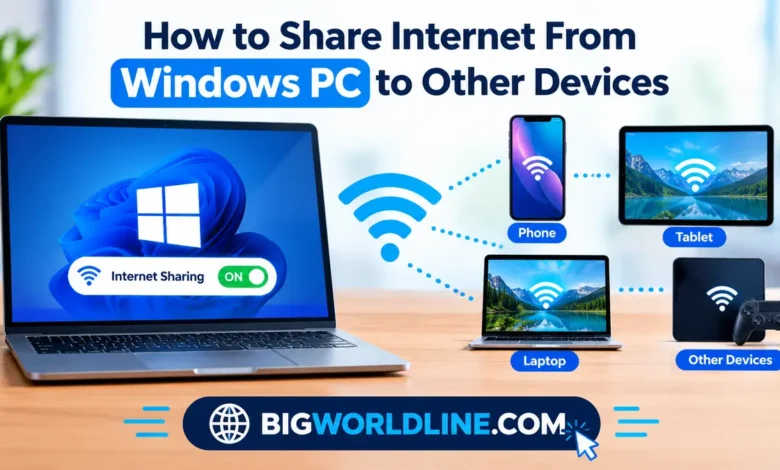
Need to connect your phone, tablet, laptop, or another device to the internet, but your router is unavailable? Your Windows PC might be all you need. With built-in Windows networking features, you can share an existing internet connection with other devices without purchasing a separate router.
Learning how to share internet from Windows PC to other devices is particularly useful when you have a wired Ethernet connection, a USB internet modem, or a Wi-Fi connection that you want to make available to nearby devices. Windows includes a feature called Mobile Hotspot that makes the process straightforward on compatible computers.
In this guide, you will learn how to share your PC’s internet connection using Wi-Fi, Ethernet, and Bluetooth, troubleshoot common connection problems, and choose the method that works best for your setup.
Key Takeaways
- Mobile Hotspot is the easiest way to share your PC’s internet over Wi-Fi.
- Windows 10 and Windows 11 support internet sharing through built-in networking features, although available options depend on your hardware and configuration.
- You can share an Ethernet connection with phones, tablets, laptops, and other Wi-Fi-enabled devices.
- Bluetooth tethering is an alternative when you need a connection with relatively low power consumption.
- A strong password, updated network drivers, and sensible data usage help keep your shared connection secure and reliable.
What Does Sharing Your Windows PC’s Internet Connection Mean?
Internet connection sharing allows your computer to act as a connection point for other devices. Instead of connecting every device directly to a router, you use your PC to pass an existing internet connection to them.
For example, if your desktop computer receives internet through an Ethernet cable, you can use its Wi-Fi adapter to create a wireless hotspot. Your smartphone can then connect to that hotspot just as it would connect to a regular Wi-Fi network.
This arrangement can be useful when:
- Your desktop has a wired internet connection but no wireless router is available.
- You want to connect a phone or tablet while traveling.
- Your laptop has internet access that you want to share temporarily.
- Several devices need access to one available connection.
Important: Sharing your internet does not create a new internet subscription. The connected devices use the existing connection, and their combined activity may consume more bandwidth and data.
Method 1: Share Internet From Windows PC Using Mobile Hotspot
The built-in Mobile Hotspot feature is generally the simplest way to share internet from a Windows computer. It allows compatible PCs to broadcast a Wi-Fi network that other devices can join.
Step 1: Open Windows Settings
First, make sure your PC is connected to the internet through Wi-Fi, Ethernet, or another supported connection.
On Windows 11:
- Press Windows + I to open Settings.
- Select Network & internet.
- Click Mobile hotspot.
On Windows 10:
- Open Settings using Windows + I.
- Select Network & Internet.
- Choose Mobile hotspot from the sidebar.
The exact menu layout may vary depending on your Windows version and installed network adapters.
Step 2: Choose the Internet Connection to Share
Find the option labeled Share my internet connection from.
Select the connection that currently provides internet access to your computer. Depending on your setup, the available choices might include Wi-Fi or Ethernet.
If your PC is connected through an Ethernet cable, selecting Ethernet lets Windows share that wired connection over a wireless hotspot.
If you have multiple network connections, double-check that you have selected the one that actually provides internet access.
Step 3: Configure the Hotspot Name and Password
Before activating the hotspot, configure its network details.
- Locate the Properties section or the Edit button.
- Enter a recognizable network name.
- Create a strong Wi-Fi password.
- Select the available network band, if Windows provides that option.
- Save your changes.
Choose a password that is difficult to guess and avoid using personal information such as your name or birthday.
If you see an option for the 2.4 GHz or 5 GHz band, consider device compatibility. The 2.4 GHz band generally offers broader compatibility and better range through obstacles, while 5 GHz can provide higher speeds at shorter distances under suitable conditions.
Step 4: Turn On Mobile Hotspot
Return to the Mobile Hotspot page and switch the Mobile hotspot toggle to On.
Windows should begin broadcasting the wireless network if your computer’s hardware and drivers support the feature.
Keep the Settings page open while testing the connection. If the hotspot does not start, check whether your wireless adapter is enabled and whether its driver is functioning correctly.
Step 5: Connect Your Other Devices
Now connect your phone, tablet, laptop, or another compatible device.
- Open the device’s Wi-Fi settings.
- Find the hotspot name you created.
- Select the network.
- Enter the password.
- Wait for the device to connect.
- Open a website to confirm that internet access works.
If the device connects to the hotspot but cannot access websites, the wireless connection may be working while the PC’s internet-sharing connection is not. The troubleshooting section below explains how to investigate that issue.
Method 2: Share an Ethernet Internet Connection Over Wi-Fi
This method is especially useful for desktop computers connected to the internet through a network cable.
Your desktop can receive internet through Ethernet while its Wi-Fi adapter provides wireless access to nearby devices.
How to Set It Up
- Connect your PC to the router or modem using an Ethernet cable.
- Confirm that websites load correctly on the PC.
- Open Settings > Network & internet > Mobile hotspot.
- Under Share my internet connection from, choose Ethernet if available.
- Configure the hotspot name and password.
- Turn on Mobile Hotspot.
- Connect your other devices using the hotspot credentials.
This setup allows a phone or laptop to use the wired connection without needing its own Ethernet port.
Hardware requirement: Your PC must have a compatible Wi-Fi adapter to broadcast a wireless hotspot. If it lacks one, a suitable USB Wi-Fi adapter may provide the necessary hardware.
Method 3: Share Internet Through Bluetooth
Bluetooth can provide another way to share a computer’s internet connection. However, this method is less straightforward than Mobile Hotspot and may not be available in every Windows configuration.
Bluetooth is generally better suited to light internet use than demanding activities such as high-resolution video streaming or large downloads.
Steps to Try Bluetooth Internet Sharing
- Enable Bluetooth on your Windows PC and the receiving device.
- Open Windows Settings and navigate to Bluetooth & devices.
- Pair the two devices.
- Check the available network and Bluetooth connection settings.
- Look for Bluetooth networking or a Personal Area Network (PAN) connection.
- If supported by both devices and their software, establish the network connection and test internet access.
Bluetooth pairing alone does not guarantee internet sharing. Both devices must support a compatible networking method, and the PC may require additional configuration.
For most users, Mobile Hotspot is the better option because it is easier to configure and supports a wider range of everyday devices.
Method 4: Share Internet Using Windows Internet Connection Sharing
Windows also provides a traditional feature called Internet Connection Sharing (ICS). It can be useful when you want to share one network connection through another adapter, particularly in a wired networking setup.
The available configuration options depend on your Windows edition, network adapters, and drivers.
Configure Internet Connection Sharing
- Press Windows + R.
- Type
ncpa.cpland press Enter to open Network Connections. - Identify the adapter that provides internet access.
- Right-click that adapter and select Properties.
- Open the Sharing tab, if available.
- Select Allow other network users to connect through this computer’s Internet connection.
- Choose the destination network adapter when prompted.
- Apply the changes and test the connection from the receiving device.
Be careful when selecting the destination adapter. Choosing the wrong one can prevent the receiving device from obtaining network access.
If the Sharing tab is missing, your configuration may not expose this option. In that case, use Mobile Hotspot if it is supported by your PC.
For official instructions and version-specific information, consult Microsoft Support.
How to Keep Your Shared Internet Connection Secure
Sharing internet is convenient, but it also creates a network that other devices can join. A few basic precautions help reduce unwanted access.
- Use a strong password: Avoid simple combinations such as
12345678or your phone number. - Share credentials selectively: Give the password only to people and devices you trust.
- Disable the hotspot when finished: This prevents unnecessary connections and reduces power consumption.
- Keep Windows updated: Updates can address security issues and improve hardware compatibility.
- Monitor data usage: Connected devices may automatically download updates, sync files, or stream video.
- Use a private network when appropriate: Be mindful of file sharing and network discovery, particularly on public or unfamiliar networks.
Also remember that the hotspot’s security depends partly on the settings and capabilities supported by your wireless adapter and Windows version.
Troubleshooting: Why Is Windows Internet Sharing Not Working?
If your other devices cannot connect or have no internet access, try these solutions in order.
1. Mobile Hotspot Will Not Turn On
Check that Wi-Fi is enabled and that your wireless adapter is working. Restarting the PC can help resolve temporary driver or networking problems.
If the issue continues, open Device Manager, expand Network adapters, and check whether the wireless adapter is disabled or reporting an error.
2. Devices Connect but Cannot Access the Internet
First, confirm that the PC itself can access websites. Then turn Mobile Hotspot off and on again.
If you use Internet Connection Sharing, verify that the correct source and destination adapters are selected. A temporary VPN configuration or third-party firewall can also interfere with internet sharing.
3. The Hotspot Is Missing From the Device’s Wi-Fi List
Move the receiving device closer to the PC and check whether the wireless adapter supports the selected frequency band.
If your hotspot offers a choice of network bands, try 2.4 GHz for compatibility with older devices. Also confirm that the PC’s Wi-Fi adapter and drivers support Mobile Hotspot.
4. The Shared Connection Is Too Slow
The speed available to connected devices depends on your original internet connection, wireless signal strength, PC hardware, and the activity of other devices.
To improve performance, move devices closer to the PC, disconnect devices that do not need internet access, and pause large downloads or background updates.
Frequently Asked Questions
1. Can I share internet from my Windows PC to an Android phone?
Yes. Turn on Mobile Hotspot in Windows, configure a network name and password, and connect your Android phone through its Wi-Fi settings. Your phone will use the PC’s existing internet connection.
2. Can I share my PC’s internet without a router?
Yes, provided your PC already has an internet connection and the required networking hardware. For example, a computer connected through Ethernet can broadcast a Wi-Fi hotspot for nearby devices without needing a separate wireless router.
3. Does sharing internet from a Windows PC cost extra?
Windows does not normally charge a separate fee for using its built-in Mobile Hotspot feature. However, your internet provider’s data limits, subscription terms, and any applicable charges still apply.
4. Can I share internet from Windows 10 and Windows 11?
Yes. Both Windows 10 and Windows 11 include Mobile Hotspot functionality on compatible hardware. The Settings layout and available options may differ, and Microsoft ended standard support for Windows 10 on October 14, 2025, so eligible users should consider moving to a supported Windows version.
Conclusion
Learning how to share internet from Windows PC to other devices can save you time when a router is unavailable or you need to connect several devices to one internet connection. For most people, Windows Mobile Hotspot is the easiest solution because it provides a straightforward way to share Ethernet or another supported connection over Wi-Fi.
Start by confirming that your PC has working internet access, configure a secure hotspot, and connect your other devices using the password you created. If Mobile Hotspot is unavailable or does not work with your setup, Bluetooth networking or Internet Connection Sharing may offer an alternative.
With the right configuration and a few basic security precautions, your Windows PC can serve as a convenient internet-sharing point for phones, tablets, laptops, and other compatible devices.
Recommended Reading:
Sharing your PC’s internet connection while your system works hard? If you notice your laptop running hot or noisy during heavy tasks, check out our troubleshooting guide on why is your laptop fan loud when idle and how to fix it.