USB-C DisplayPort Alt Mode Explained: A Beginner’s Guide to Monitor Compatibility

Have you ever plugged a USB-C cable into your laptop, expecting your monitor to light up, only to discover that nothing happens? The problem might not be your cable or monitor. It could be that your device does not support DisplayPort Alt Mode.
USB-C has made connecting devices easier by combining charging, data transfer, and video output into a single connector. However, not every USB-C port supports all these functions. Understanding USB-C DisplayPort Alt Mode can help you avoid buying incompatible cables, adapters, and monitors.
This beginner-friendly guide explains what DisplayPort Alt Mode is, how it works, how to check device compatibility, and what to do when your external display refuses to connect.
Key Takeaways
- DisplayPort Alt Mode allows compatible USB-C ports to transmit video and audio to external displays.
- Not every USB-C port supports video output.
- Your laptop, cable, adapter, and monitor must support compatible video standards.
- A USB-C connector’s physical appearance does not guarantee DisplayPort support.
- DisplayPort Alt Mode can support high-resolution displays, depending on the hardware and connection specifications.
- Checking manufacturer specifications before purchasing accessories can prevent compatibility problems.
What Is USB-C DisplayPort Alt Mode?
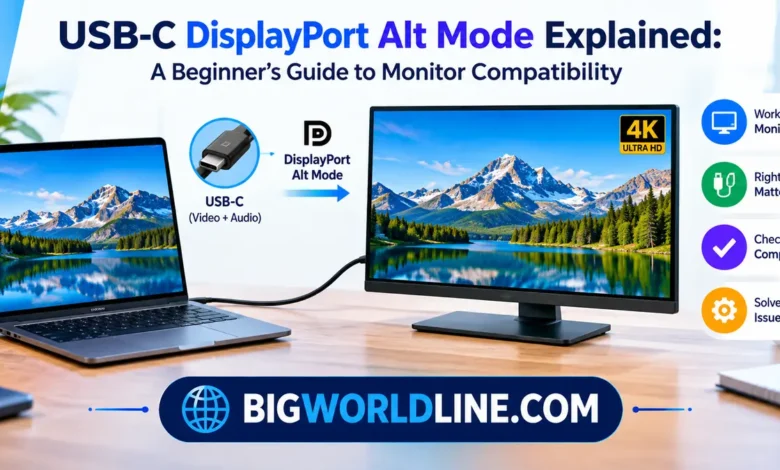
USB-C DisplayPort Alt Mode is a feature that allows a USB-C connection to carry DisplayPort video and audio signals directly to an external monitor.
The term “Alt Mode” stands for Alternative Mode. It means that the USB-C connector can use some of its available communication lanes for technologies other than standard USB data transfer.
In this case, the technology is DisplayPort, a digital display interface developed by VESA (Video Electronics Standards Association).
Instead of requiring a traditional DisplayPort connector, Alt Mode allows compatible devices to send display signals through their USB-C ports.
For example, you can connect a compatible laptop to an external monitor using a USB-C-to-USB-C cable or a USB-C-to-DisplayPort adapter.
How Does DisplayPort Alt Mode Work?
USB-C connectors have multiple pins and communication lanes. These lanes can handle different types of signals depending on the supported connection mode.
When you connect a compatible USB-C device to a display, the devices negotiate the connection. If DisplayPort Alt Mode is supported, the USB-C connection can allocate available high-speed lanes to transmit DisplayPort signals.
Depending on the implementation, the connection can use:
- Four DisplayPort lanes: Allocates all four high-speed lanes to video transmission.
- Two DisplayPort lanes: Uses two lanes for video while retaining the other high-speed lanes for USB 3.x data.
The available bandwidth depends on the DisplayPort version, device hardware, and connection configuration.
This flexibility allows USB-C to support video output without requiring a separate full-size DisplayPort connector.
USB-C vs. DisplayPort Alt Mode: What’s the Difference?
One of the most common misunderstandings is assuming USB-C and DisplayPort Alt Mode mean the same thing.
They do not.
USB-C describes the physical connector and its associated connection capabilities. It is the small, reversible port commonly found on modern laptops, tablets, smartphones, and accessories.
DisplayPort Alt Mode is a specific capability that allows compatible USB-C connections to transmit DisplayPort video signals.
Consider this simple comparison:
| Feature | USB-C | DisplayPort Alt Mode |
|---|---|---|
| Type | Connector standard | Video transmission mode |
| Reversible connector | Yes | Uses USB-C |
| Data transfer | Supported on compatible ports | Not its primary purpose |
| Video output | Not guaranteed | Yes, when supported |
| Device compatibility | Depends on hardware | Requires Alt Mode support |
A USB-C port may support charging and file transfers without supporting external video output.
That’s why checking the technical specifications matters more than simply looking at the connector.
What Do You Need to Use USB-C DisplayPort Alt Mode?
To connect an external monitor successfully, several components must work together.
1. A USB-C Port That Supports DisplayPort Alt Mode
Your laptop, tablet, or smartphone must have a USB-C port with DisplayPort Alt Mode support.
Some manufacturers label compatible ports with a DisplayPort symbol or a Thunderbolt icon. However, symbols are not consistent across every manufacturer.
The most reliable approach is to check the official product specifications or user manual.
2. A Compatible USB-C Cable
Not all USB-C cables support video transmission.
Some inexpensive cables are designed primarily for charging or basic data transfer. Even if they physically fit your laptop and monitor, they might not carry DisplayPort signals.
Look for cables that explicitly advertise:
- DisplayPort Alt Mode compatibility.
- USB-C video output support.
- Appropriate DisplayPort bandwidth.
- Support for your desired resolution and refresh rate.
3. A Compatible Monitor or Adapter
Your monitor must have a suitable input connection.
Depending on your setup, you can use:
- A monitor with a USB-C video input.
- A USB-C-to-DisplayPort cable.
- A compatible USB-C-to-HDMI adapter.
Remember that HDMI adapters may use different conversion technologies. Check the adapter specifications rather than assuming every USB-C-to-HDMI accessory supports your desired display settings.
How to Check Whether Your Laptop Supports DisplayPort Alt Mode
Before purchasing a monitor or cable, confirm that your device supports video output through USB-C.
Follow these steps:
Step 1: Identify Your Laptop Model
Find the exact model name and model number of your laptop.
You can usually find this information in Windows by opening Settings and navigating to System > About.
On macOS, select the Apple menu and choose About This Mac.
Step 2: Visit the Manufacturer’s Website
Open the official support or product specifications page for your device.
Search for terms such as:
- DisplayPort over USB-C.
- USB-C DisplayPort Alt Mode.
- USB-C video output.
- External display support.
- Thunderbolt display support.
If the specifications explicitly mention DisplayPort Alt Mode, that is a good indication that the port supports this functionality.
Step 3: Check the USB-C Port Symbols
Look closely at the symbols printed near your laptop’s USB-C ports.
You might find:
- A DisplayPort logo.
- A Thunderbolt lightning symbol.
- A USB symbol.
These markings can provide useful clues, but they are not a substitute for checking the manufacturer’s documentation.
Step 4: Confirm Display Resolution Support
Even when DisplayPort Alt Mode is available, maximum display resolution and refresh rate can vary.
Check whether your device supports the monitor’s resolution, refresh rate, and number of external displays.
For example, a laptop might support a 4K monitor at 60Hz but not a 4K monitor at 144Hz through the same connection.
USB-C DisplayPort Alt Mode and Monitor Resolution
One of the biggest advantages of DisplayPort Alt Mode is its ability to support high-resolution external displays.
However, the actual performance depends on several technical factors.
These include:
- DisplayPort version.
- Available connection bandwidth.
- Number of DisplayPort lanes.
- Cable specifications.
- Monitor capabilities.
- Graphics hardware.
Here is a general overview:
| DisplayPort Version | Maximum Data Rate | Typical Capabilities |
|---|---|---|
| DisplayPort 1.2 | 21.6 Gbps | 4K at 60Hz |
| DisplayPort 1.4 | 32.4 Gbps | 4K at high refresh rates; 8K with suitable configurations |
| DisplayPort 2.0 | 77.37 Gbps | High-resolution and high-refresh-rate displays |
| DisplayPort 2.1 | Up to 77.37 Gbps | Enhanced support for modern display connections |
These are interface bandwidth figures, not guaranteed monitor performance. Actual resolution and refresh-rate combinations depend on compression, color depth, lane allocation, and device support.
For more technical details, visit the official VESA DisplayPort standards website.
How to Connect a USB-C Laptop to an External Monitor
Once you’ve confirmed compatibility, connecting your monitor is relatively simple.
Follow these steps:
- Check your laptop: Confirm that its USB-C port supports DisplayPort Alt Mode.
- Check your monitor: Identify whether it has USB-C, DisplayPort, or HDMI input.
- Choose the correct cable: Select a certified or manufacturer-recommended cable that supports your required display settings.
- Connect both devices: Plug one end into your laptop and the other into your monitor.
- Select the correct input: Use your monitor’s menu to choose the connected USB-C, DisplayPort, or HDMI input.
- Configure display settings: Adjust resolution, refresh rate, and display arrangement through your operating system.
On Windows, open Settings > System > Display to configure your external screen.
On macOS, open System Settings > Displays.
If everything is compatible, the external monitor should be detected automatically.
Common USB-C DisplayPort Alt Mode Problems and Their Solutions
Even with compatible devices, connection problems can occasionally occur.
Here are some common issues and practical ways to troubleshoot them.
1. The Monitor Shows No Signal
Possible cause: Your laptop’s USB-C port may not support video output, or the monitor may be using the wrong input source.
Solution:
- Verify DisplayPort Alt Mode support.
- Select the correct monitor input.
- Disconnect and reconnect the cable.
- Restart both devices.
2. The Monitor Works but Has Low Resolution
Possible cause: Your cable, adapter, or laptop may not support the required bandwidth.
Solution:
- Check the DisplayPort version supported by your devices.
- Use a compatible higher-bandwidth cable.
- Update your graphics drivers.
- Select the recommended resolution in your display settings.
3. The Monitor Flickers or Disconnects
Possible cause: A damaged cable, loose connection, or incompatible adapter may interrupt the display signal.
Solution:
- Try another compatible USB-C cable.
- Avoid unnecessarily long or low-quality cables.
- Connect the monitor directly to your laptop.
- Update your graphics drivers and device firmware if applicable.
4. The Monitor Displays Video but Doesn’t Charge Your Laptop
Possible cause: DisplayPort Alt Mode handles video transmission, but charging requires separate USB Power Delivery support.
Solution:
Check whether your monitor supports USB Power Delivery and provides sufficient charging wattage for your laptop.
A monitor can support USB-C video without providing laptop charging.
Is USB-C DisplayPort Alt Mode Better Than HDMI?
Neither technology is universally better. The right option depends on your devices and requirements.
DisplayPort Alt Mode is particularly convenient when you want to connect a laptop to a monitor using one USB-C cable.
HDMI is widely supported by televisions, monitors, projectors, and gaming devices.
Here are some practical differences:
| Feature | USB-C DisplayPort Alt Mode | HDMI |
|---|---|---|
| Connector | USB-C | HDMI |
| Video transmission | Yes | Yes |
| Audio transmission | Yes | Yes |
| Reversible connector | Yes | No |
| Laptop charging | Requires separate USB Power Delivery support | Not a standard HDMI feature |
| Common applications | Laptops, tablets, monitors | TVs, consoles, monitors |
If your monitor supports USB-C video and charging, one cable may handle both functions.
However, HDMI remains a practical choice when connecting devices such as gaming consoles, televisions, and home entertainment systems.
Frequently Asked Questions (FAQs)
1. Does Every USB-C Port Support DisplayPort Alt Mode?
No. USB-C describes the connector, not every feature it supports. Some ports handle charging and data transfer but lack video output capabilities. Always check your device’s technical specifications before purchasing a monitor or cable.
2. Can I Connect a USB-C Laptop to an HDMI Monitor?
Yes. You can use a compatible USB-C-to-HDMI adapter or cable, provided your laptop supports DisplayPort Alt Mode or another suitable video-output technology. Check the adapter’s supported resolution and refresh rate before buying.
3. Does DisplayPort Alt Mode Support 4K Monitors?
Yes. DisplayPort Alt Mode can support 4K monitors, but the maximum refresh rate depends on the DisplayPort version, available bandwidth, cable, and connected devices. Check the specifications of your complete setup to confirm the supported resolution.
4. Does USB-C DisplayPort Alt Mode Charge My Laptop?
No, not by itself. DisplayPort Alt Mode provides video and audio transmission. Laptop charging requires USB Power Delivery support from the connected device, cable, and power source.
Conclusion
USB-C DisplayPort Alt Mode makes connecting laptops, tablets, and other compatible devices to external monitors easier by allowing video and audio signals to travel through a USB-C connection.
However, the presence of a USB-C port does not automatically mean that a device supports video output. Your laptop, cable, adapter, and monitor must all support the necessary connection standards.
Before purchasing accessories, check your device specifications, confirm DisplayPort Alt Mode compatibility, and choose a cable that supports your desired resolution and refresh rate.
Once you understand these basics, setting up an external monitor becomes much easier, and you can avoid many of the compatibility problems that confuse first-time USB-C users.
Related Guide: Having trouble with your Windows 11 microphone? Check out our detailed guide on how to fix Windows 11 microphone permission not working to troubleshoot microphone access and privacy settings.