Your microphone works perfectly in one application but refuses to respond in another. Perhaps Zoom cannot hear you, Discord shows no input, or your browser keeps asking for microphone access even after you grant permission.
If you are experiencing the Windows 11 microphone permission not working issue, the cause could be a privacy setting, an application permission, an incorrect audio input device, or a driver problem. The good news is that you can troubleshoot most of these issues without reinstalling Windows or purchasing new hardware.
This guide explains how to identify the cause and restore microphone access using practical, step-by-step solutions.
Key Takeaways
- Enable microphone access in Windows 11 privacy settings.
- Allow desktop apps or Microsoft Store apps to use your microphone.
- Select the correct input device and check its volume.
- Troubleshoot browser permissions, audio drivers, and Windows services if necessary.
- Test the microphone after each fix to identify what resolved the problem.
Why Is My Microphone Permission Not Working in Windows 11?
Windows 11 includes privacy controls that allow you to decide which applications can access your microphone. Even if your microphone is connected correctly, these controls can prevent applications from recording audio.
Common causes include:
- Microphone access is disabled in Windows privacy settings.
- An application does not have the required permission.
- The wrong microphone is selected as the input device.
- The microphone is muted or its input volume is too low.
- A browser is blocking microphone access for a particular website.
- An outdated or corrupted audio driver is causing problems.
- A USB connection, headset cable, or Bluetooth connection is faulty.
Before trying advanced repairs, determine whether the microphone fails in every application or only one. If it works in Windows Sound Recorder but not in a video conferencing app, the problem is more likely related to that application’s settings or permissions.
1. Enable Microphone Access in Windows 11 Privacy Settings
The first step is to check whether Windows allows applications to use your microphone. This setting is one of the most common reasons microphone permissions stop working.
Follow these steps
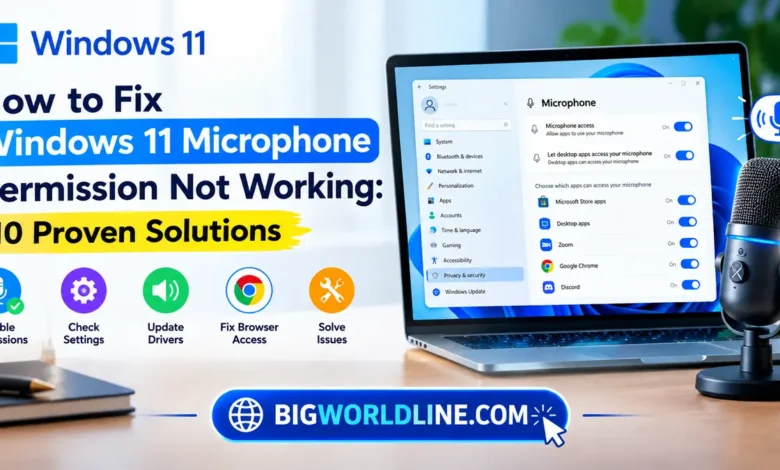
- Press Windows + I to open Settings.
- Select Privacy & security from the left sidebar.
- Scroll to the App permissions section.
- Click Microphone.
- Turn on Microphone access.
- Enable Let apps access your microphone if the option is available.
- Check the individual application permissions listed on the page.
If microphone access is disabled, applications may be unable to capture audio regardless of their internal settings.
After enabling access, close and reopen the affected application. Some programs need to restart before they recognize a change in Windows privacy permissions.
2. Allow Desktop Apps to Access Your Microphone
Enabling microphone access does not always resolve the issue because Windows distinguishes between Microsoft Store apps and traditional desktop applications.
Programs such as Discord, Zoom, Google Chrome, and many other desktop applications may rely on the desktop app microphone permission control.
How to enable desktop microphone permissions
- Open Settings.
- Navigate to Privacy & security > Microphone.
- Locate Let desktop apps access your microphone.
- Turn the setting on.
- Restart the application you want to use.
Desktop applications generally share this permission control rather than appearing as individual switches in the same list as Microsoft Store apps.
Important: If the desktop app setting is enabled but your microphone still does not work, check the application’s own audio input settings. Windows permission and application configuration are separate controls.
3. Check Whether the Correct Microphone Is Selected
Sometimes microphone permission is working correctly, but Windows is listening to the wrong device.
For example, your computer might select a webcam microphone instead of your headset microphone. A previously paired Bluetooth device can also become the default input unexpectedly.
Select the correct input device
- Open Settings > System > Sound.
- Scroll to the Input section.
- Find the available recording devices.
- Select the microphone you want to use.
- Speak normally and observe the input level indicator, if displayed.
- Open the device’s properties to review its input volume.
If the indicator responds when you speak, Windows is receiving audio from that device.
If multiple microphones appear, test each one individually. Choose the correct device in both Windows and the affected application to prevent conflicts.
4. Increase Microphone Volume and Disable Mute
Low input volume can make a functioning microphone appear broken. Some headsets also have physical mute buttons or inline controls that override software settings.
Adjust your microphone volume
- Open Settings > System > Sound.
- Select your microphone under Input.
- Increase the Input volume to a reasonable level.
- Check whether the device is muted.
- Speak into the microphone and watch the input meter.
If your headset has a mute switch, make sure it is turned off. For Bluetooth headsets, verify that the device is connected properly and selected as the active input.
Avoid setting the input volume unnecessarily high, as excessive amplification can introduce background noise and distortion.
5. Run the Windows Audio Troubleshooter
Windows 11 includes troubleshooting tools that can identify certain audio configuration and device problems automatically.
If the microphone is enabled but produces no input, running the troubleshooter is a useful next step.
How to run the troubleshooter
- Press Windows + I.
- Open System > Troubleshoot > Other troubleshooters.
- Locate the audio troubleshooting options.
- Run the available audio troubleshooter, following the on-screen instructions.
Depending on your Windows 11 version, the available audio troubleshooting options may differ. Windows may also direct you to the Get Help app for additional diagnostic steps.
Apply any recommended repair, restart the relevant application, and test your microphone again.
6. Fix Microphone Permissions in Chrome, Edge, or Firefox
If your microphone works in desktop applications but fails on websites, the issue may be browser-specific.
Video meeting platforms, online recording tools, and browser-based communication apps typically require permission at both the Windows and browser levels.
Check microphone permissions in Google Chrome
- Open Chrome and visit the website where the microphone fails.
- Click the site information icon beside the address bar.
- Open the site’s permissions or settings.
- Find Microphone.
- Set the permission to Allow, if appropriate.
- Reload the webpage and test the microphone.
You can also review Chrome’s site permissions by opening its Settings and navigating to Privacy and security > Site settings > Microphone. The exact labels may vary slightly by version.
Check other browsers
In Microsoft Edge, open the site’s permissions and allow microphone access. In Firefox, review the microphone permission prompt or open the browser’s Privacy & Security settings to manage website permissions.
If the browser offers a microphone selection menu, choose the correct physical device.
Privacy tip: Grant microphone access only to websites you trust. If a site does not need audio recording, keep its microphone permission blocked.
For additional guidance on Windows privacy controls, visit the official Microsoft guide to Windows privacy settings.
7. Update or Reinstall the Microphone Driver
An outdated, incompatible, or corrupted audio driver can prevent Windows from detecting a microphone correctly. This is particularly common after certain Windows updates or when connecting new audio hardware.
Try updating the driver before removing it.
Update the microphone driver
- Right-click the Start button.
- Select Device Manager.
- Expand Audio inputs and outputs.
- Right-click your microphone or recording device.
- Select Update driver.
- Choose Search automatically for drivers and follow the instructions.
You can also check the Sound, video and game controllers category if the problem involves the audio controller.
Reinstall the driver if updating fails
If the microphone still does not work, you can reinstall its device driver.
- Open Device Manager.
- Expand Audio inputs and outputs.
- Right-click the affected device and choose Uninstall device, if available.
- Follow the prompts.
- Restart your computer.
Windows may detect the device and reinstall a compatible driver during startup. If it does not, obtain the appropriate driver from your computer manufacturer’s official support website.
Avoid downloading drivers from unfamiliar third-party websites.
8. Restart Windows Audio Services
Windows audio services help applications communicate with audio devices. If these services encounter a problem, sound input or output may stop working correctly.
Restarting the relevant services can sometimes restore normal operation.
Steps to restart the services
- Press Windows + R.
- Type
services.mscand press Enter. - Find Windows Audio.
- Right-click it and select Restart, if available.
- Locate Windows Audio Endpoint Builder and check its status.
- Restart the computer if prompted or if the issue continues.
If a service is stopped, review its startup configuration and any error messages before changing settings. Avoid disabling Windows audio services, as doing so can affect multiple applications and devices.
Once the services are running, reopen the application and test the microphone.
9. Disconnect and Reconnect Your Microphone
Not every microphone problem is caused by software. A loose cable, faulty USB port, or unstable Bluetooth connection can prevent Windows from receiving audio.
Try these basic hardware checks:
- Disconnect and reconnect your USB microphone.
- Test a different USB port, preferably directly on the computer.
- Check the headset cable and physical mute switch.
- Disconnect and reconnect your Bluetooth headset.
- Charge the wireless device if its battery is low.
- Test the microphone on another computer, if possible.
If the microphone fails on multiple devices, the hardware itself may be faulty. If it works elsewhere, return to the Windows settings and driver checks.
For a laptop with a built-in microphone, check the manufacturer’s documentation for any physical privacy switch or keyboard shortcut that disables the microphone.
10. Install Windows Updates and Test the Microphone
Windows updates can include compatibility fixes, security improvements, and driver updates. Installing available updates may resolve microphone problems caused by known software issues.
Check for Windows updates
- Open Settings.
- Select Windows Update.
- Click Check for updates.
- Install applicable updates.
- Restart your computer if required.
Check Advanced options > Optional updates for relevant driver updates, when available. Prefer drivers supplied by your device manufacturer if Windows Update does not resolve a hardware-specific issue.
Test the microphone after restarting
After applying the fixes, open Windows Sound settings and select your microphone. Speak into it and check whether the input meter responds.
You can also use the built-in Sound Recorder app, if available, to make a short recording and play it back. If recording works there but not in a particular application, focus on that application’s permissions and audio settings rather than repeating system-wide repairs.
Frequently Asked Questions
Why is Windows 11 blocking my microphone even when permission is enabled?
Windows permission settings may be enabled while the application itself is configured incorrectly. Check the selected input device, desktop app access, browser permissions, and the application’s internal audio settings.
How do I reset microphone permissions in Windows 11?
Open Settings > Privacy & security > Microphone and review the available access switches. Turn on the required permissions and verify individual app access where applicable. For website-specific problems, reset or change the microphone permission in your browser.
Why does my microphone work in one app but not another?
Different applications can use different input devices and permission controls. Confirm that Windows allows microphone access, select the correct input device in the affected app, and check whether the browser or application has its own microphone restrictions.
Can a Windows update cause microphone permission problems?
Yes. An update can sometimes change device configuration or expose a driver compatibility issue. Check your microphone privacy settings, install applicable updates, and obtain a compatible driver from your computer manufacturer’s support website if needed.
Conclusion
The Windows 11 microphone permission not working problem is often caused by a disabled privacy setting, a blocked application permission, or an incorrect audio input device. Start by enabling microphone access, checking desktop app permissions, and confirming that Windows is using the right microphone.
If those steps do not help, troubleshoot browser permissions, update the audio driver, restart Windows audio services, and inspect the hardware connection. Work through the fixes one at a time and test the microphone after each change to identify the cause without making unnecessary system modifications.
Related Guide: Want to keep your Android device organized and free from unnecessary files? Check out our guide on how to remove duplicate photos on Android safely for simple and effective steps to find and delete duplicate images.