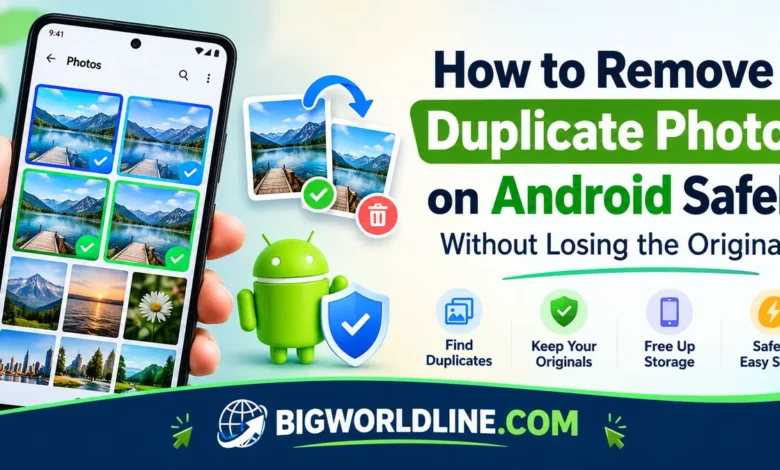
Duplicate photos can quietly fill up your Android phone’s storage. You might have the same picture saved several times after downloading it from WhatsApp, taking screenshots, editing images, or backing up files from another device.


The tricky part is knowing which copies are safe to delete. Removing the wrong image could erase an important memory, a full-resolution picture, or a photo that has not been backed up.
The good news is that you can remove duplicate photos on Android safely by checking your files first, using trusted tools, and keeping a backup of anything you cannot replace. This guide explains the safest methods, from built-in Google Photos features to manual cleanup and duplicate-finder apps.
Key Takeaways
- Back up important pictures before deleting anything.
- Use Google Photos to identify duplicate-looking images and review them manually.
- Check Google Photos, your Gallery app, and your Files app separately because they may show different copies.
- Use Google Files’ duplicate-cleanup feature when it is available on your device.
- Remember that deleting a photo from a cloud-backed gallery may also remove it from synced devices.
- Keep the original, highest-quality image whenever two pictures are similar but not identical.
Why Do Duplicate Photos Appear on Android?
Android phones can accumulate duplicate images for several reasons. Understanding how they appear makes it easier to clean up storage without deleting something important.
Common causes include:
- Messaging apps: WhatsApp, Telegram, and other apps may save received images to your device.
- Repeated downloads: Downloading the same picture more than once can create multiple files.
- Editing apps: Some photo editors save a new version instead of replacing the original.
- Cloud synchronization: Photos transferred or downloaded from cloud services may exist in multiple folders.
- Screenshots and social media: Screenshots, saved posts, and downloaded images can look almost identical.
- Device transfers: Moving photos from an old phone to a new one may create overlapping collections.
Not every similar-looking photo is a true duplicate. Two images might have different resolutions, edits, file sizes, or metadata, so check them before deleting either one.
Step 1: Back Up Your Photos Before Cleaning
The safest way to remove duplicate photos on Android safely is to create a recovery option first.
Check whether your photos are backed up
If you use Google Photos, open the app and check the backup status associated with your account. Confirm that important pictures have finished uploading rather than assuming every image is already stored in the cloud.
You can also copy your pictures to a computer, an external drive, or another trusted storage location.
Follow these precautions:
- Open your preferred backup service or file manager.
- Confirm that your important photos are present in the backup.
- Check a few pictures by opening them from the backup location.
- Make a separate copy of especially valuable photos before deleting anything.
- Avoid clearing folders or deleting large batches until you have verified your backup.
Important: A photo visible in Google Photos is not necessarily backed up. Check its backup status before relying on cloud recovery.
For official guidance, see the Google Photos Help Center.
Step 2: Find Duplicate Photos Using Google Photos
Google Photos is a useful starting point because many Android users already have it installed. However, it does not provide a universal, automatic tool that identifies and deletes every duplicate image on every device.
Instead, use its search and browsing features to find repeated pictures and inspect them manually.
How to identify duplicate-looking photos
- Open Google Photos on your Android phone.
- Browse the main photo timeline and look for repeated images.
- Use the search feature to find photos by date, subject, location, or other available details.
- Open suspicious images individually and compare their appearance.
- Check image details, including resolution and file information where available.
- Keep the best-quality version and delete only confirmed, unnecessary copies.
For example, if the same vacation photo appears twice, compare the two images before removing one. One version might be a compressed copy shared through a messaging app, while the other retains its original resolution.
Understand Google Photos deletion behavior
Google Photos can synchronize changes across devices. If you delete a backed-up photo through the app, it may also disappear from your Google Photos library and other synced devices.
If your goal is simply to free up space on your phone while retaining backed-up pictures, consider Google Photos’ Free up space feature instead. It removes eligible local copies that have already been backed up, rather than asking you to identify and delete individual duplicates.
Before using it, confirm that backup is complete and that the pictures you want to retain are available in your Google Photos account.
Step 3: Use Google Files to Find Duplicate Images
Google’s Files app can help identify duplicate files and unnecessary downloads. The exact options depend on your device, app version, and available storage.
Follow these steps
- Open the Files app, commonly called Files by Google on supported devices.
- Look for the Clean section or a cleanup suggestion related to duplicate files.
- If a duplicate-files category appears, open it to review the suggested files.
- Compare the filenames, locations, sizes, and previews when available.
- Select only the copies you are confident you no longer need.
- Review the selected items before confirming deletion.
If your version of Files does not offer duplicate detection, use its browsing features to inspect image folders manually.
Which duplicate should you delete?
When two files contain the same picture, compare these details:
- Resolution: Prefer the image with the greater resolution if it is otherwise the same.
- File size: A larger file may preserve more image data, although size alone does not prove better quality.
- File location: One copy may be stored in a messaging app folder and another in your main photo directory.
- Image quality: Zoom in to check for compression artifacts or reduced clarity.
- Editing history: One version may contain adjustments that you want to preserve.
Do not assume that a filename ending in a number, such as IMG_1234 (1).jpg, is always disposable. It is a clue that a copy may exist, not proof that the image is unnecessary.
Step 4: Remove Duplicates Manually Through Your Gallery
Your phone’s built-in Gallery app can be useful when you prefer not to install another application. Samsung Gallery and other manufacturer-specific gallery apps may offer different tools and menus.
Manual cleanup instructions
- Open your phone’s Gallery or Photos app.
- Browse albums containing repeated images, such as Downloads, Screenshots, WhatsApp Images, or Camera.
- Open two suspected duplicates and compare them carefully.
- Keep the original or highest-quality version.
- Select the unnecessary copy and move it to Trash or Recently Deleted if that option is available.
- Open the remaining image to verify that it still works correctly.
Deleting files from one folder may not remove other copies stored elsewhere. For example, removing an image from Downloads will not necessarily delete another copy in WhatsApp Images.
Check your phone’s Trash folder
Many gallery apps temporarily retain deleted images. If you delete a photo accidentally, open Trash, Recycle Bin, or Recently Deleted and restore it if it is still available.
Retention periods vary by app and device. Permanently emptying the Trash can make recovery much harder, so wait until you are confident that the cleanup is complete.
Step 5: Use a Trusted Duplicate Photo Cleaner
If your phone contains thousands of images, a duplicate-finder app may save time. These tools can compare files using names, file properties, image content, or visual similarity.
However, their detection methods differ, and some may incorrectly classify edited images or near-identical shots as duplicates.
What to look for in a duplicate cleaner
Choose an app that offers:
- A preview of each suspected duplicate.
- Clear file details and storage locations.
- Manual selection before deletion.
- Transparent privacy practices.
- A reasonable permission policy.
- Recent maintenance and a credible developer.
Download apps through Google Play whenever possible, and review their privacy information before granting access to your photos.
Avoid cleaners that promise unrealistic storage gains, request unrelated permissions, or automatically erase large numbers of images without a meaningful review process.
Use the app cautiously
Start with a small group of unimportant test images. Review every suggested duplicate, confirm which copy you want to keep, and check the results before processing the rest of your library.
If an app offers a one-tap cleanup feature, do not use it on your entire photo collection until you understand exactly what it will delete.
Step 6: Protect Your Originals During Cleanup
Deleting duplicate images safely requires more than finding files that look alike. You also need to understand how your gallery, file manager, and backup service handle deletion.
Use these best practices:
Keep one verified original. If you have multiple versions of the same image, preserve the version with the best quality and any edits you want to retain.
Avoid bulk deletion at first. Clean a small folder, inspect the results, and continue only after confirming that the process works as expected.
Check cloud synchronization. Deleting a synced image may affect your online library or other devices. Local file deletion and cloud-library deletion are not always the same operation.
Do not confuse cache files with photographs. Clearing an app’s cache may free up some storage, but it is not a reliable way to remove duplicate images. Avoid clearing app data unless you understand what information the app stores there.
Keep backups until you are certain. Do not permanently empty Trash or delete backup copies immediately after cleaning your phone.
Quick safety checklist
Before confirming any deletion, ask yourself:
- Is this genuinely a duplicate?
- Have I checked the resolution and image quality?
- Is the version I want to keep safely stored?
- Could deleting this image remove it from a synced account?
- Can I restore it if I change my mind?
If you cannot answer these questions confidently, leave the file alone until you can verify it.
Frequently Asked Questions
1. What is the safest way to remove duplicate photos on Android?
The safest approach is to back up your important pictures, compare suspected duplicates using Google Photos or a trusted file manager, and delete only confirmed copies. Keep the highest-quality original and avoid permanent deletion until you have checked the results.
2. Does Google Photos automatically delete duplicate pictures?
Google Photos does not universally identify and remove every duplicate photo automatically. You can search your library and review repeated images manually. Its Free up space feature can remove eligible local copies that are already backed up, but this is different from duplicate detection.
3. Will deleting duplicate photos also delete the originals?
It depends on which file you select and which app you use. Deleting a separate duplicate file usually leaves another independent copy untouched, but cloud-synced deletion can affect the same photo across devices. Always review the selected file and confirm the app’s deletion behavior first.
4. Can I recover a photo deleted by mistake?
Possibly. Check the Trash, Recycle Bin, or Recently Deleted folder in the app you used. If the picture was backed up, check the relevant cloud service as well. Recovery depends on the app’s retention rules, whether the item was permanently deleted, and whether a valid backup exists.
Conclusion
Duplicate photos do not have to consume valuable Android storage or put your memories at risk. With a verified backup, careful file comparisons, and the right cleanup method, you can remove unnecessary copies while preserving the pictures that matter.
Start with Google Photos or your phone’s built-in file manager, review every suggested deletion, and use a reputable duplicate cleaner only if you need additional help. The safest cleanup is not the one that deletes the most photos; it is the one that frees up space without sacrificing a single important original.
Recommended Reading:
Managing files and storage across your phone and computer? If you ever need to share your connection between devices without a router, check out our guide on how to share internet from Windows PC to other devices.