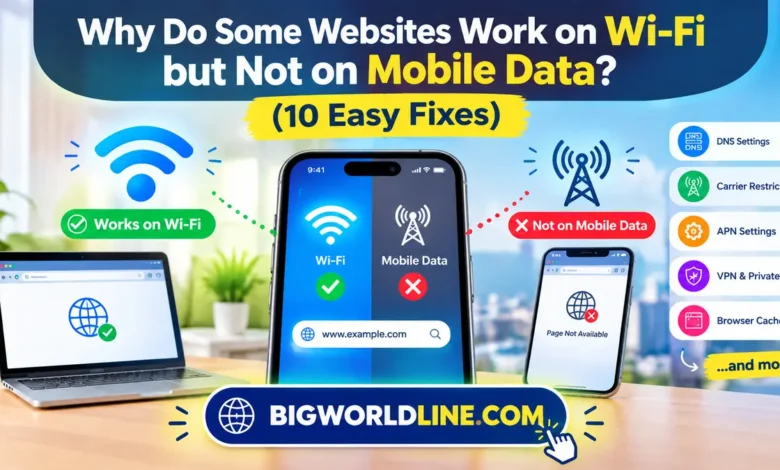
Have you ever tried opening a website on your phone, only to find that it works perfectly on Wi-Fi but refuses to load when you switch to mobile data? Your internet connection may show full signal bars, other apps might work normally, yet a particular website keeps displaying an error or loading endlessly.
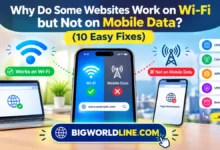
This problem can be frustrating, especially when you need to access an important website while away from home. The good news is that your phone is not necessarily damaged, and the website itself may not be offline.
If a website works on Wi-Fi but not mobile data, the problem usually involves DNS settings, mobile network restrictions, browser configuration, carrier filtering, or an issue with the website’s server. Understanding these causes can help you identify the problem and fix it without unnecessary technical changes.
Key Takeaways
- Different network settings: Wi-Fi and mobile data can use different DNS servers and routing systems.
- Carrier restrictions: Your mobile network provider may block or restrict certain websites.
- VPN and DNS issues: Private DNS, VPNs, and filtering apps can interfere with website access.
- Browser problems: Cached data, outdated browsers, or incorrect settings can prevent pages from loading.
- Easy solutions: Restarting your phone, changing DNS settings, disabling VPNs, and resetting network settings can often resolve the issue.
Why Do Some Websites Work on Wi-Fi but Not on Mobile Data?
Your phone connects to the internet differently depending on whether you use Wi-Fi or cellular data. Although both connections provide internet access, they do not necessarily follow the same network route or use identical security and DNS settings.
When you connect to Wi-Fi, your internet traffic generally passes through your router and broadband provider. When you switch to mobile data, your traffic travels through your cellular network operator.
These networks may handle website requests differently. As a result, a website that loads normally over Wi-Fi might fail when you use 4G, LTE, or 5G.
Here are the most common reasons behind this behavior.
1. DNS Server Problems
DNS, or Domain Name System, works like an internet phonebook. It translates website names, such as example.com, into numerical IP addresses that computers use to communicate.
Your Wi-Fi connection and mobile network may use different DNS servers. If your mobile provider’s DNS server experiences problems or cannot resolve a particular domain correctly, the website may fail to open.
Common signs of DNS problems include:
- Websites display a server IP address error.
- Some websites load while others do not.
- The same website opens immediately after switching to Wi-Fi.
- Browser messages mention DNS resolution or server errors.
Changing DNS settings may help, provided the problem is related to DNS rather than network filtering.
2. Mobile Carrier Restrictions or Website Blocking
Some mobile network providers restrict access to specific websites or online services.
These restrictions may result from local regulations, security policies, parental controls, account-level settings, or network filtering systems.
For example, a website might be accessible through your home broadband connection but unavailable through your cellular provider.
If several websites fail only on one mobile network, contact your carrier to check whether any access restrictions are affecting your connection.
3. Incorrect APN Settings
APN stands for Access Point Name. It contains configuration information that helps your phone connect to your mobile operator’s data network.
Incorrect, outdated, or manually modified APN settings can cause browsing problems even when your phone displays an active 4G or 5G connection.
Possible symptoms include:
- Certain websites refusing to load.
- Mobile data working inconsistently.
- Internet access stopping after a SIM change.
- Different results between network operators.
Using your carrier’s recommended APN configuration can help restore normal connectivity.
4. VPN or Private DNS Interference
VPN applications and Private DNS services can change how your phone connects to websites.
A VPN routes internet traffic through another server, while Private DNS changes how your device handles domain lookups. Some services may work differently over Wi-Fi and cellular networks.
If a VPN server becomes unavailable or a DNS provider cannot be reached through your mobile network, certain websites may stop loading.
5. IPv4 and IPv6 Compatibility Issues
Modern mobile networks increasingly support IPv6 alongside IPv4. However, not every website, server, or network configuration handles both protocols equally well.
A website may have an incorrect IPv6 configuration or compatibility issue that becomes noticeable only on certain cellular networks.
This is generally a server-side or network configuration problem rather than something you can permanently fix through your browser.
6. Browser Cache and Cookie Problems
Your browser stores temporary files, cookies, and website information to improve loading speed.
Sometimes, corrupted cached data or outdated website information can interfere with page loading. Switching networks may expose the issue because the browser handles certain requests differently.
Clearing the affected website’s cached data may resolve the problem.
7. Weak Mobile Signal or Network Congestion
Full signal bars do not always mean you have a reliable internet connection.
Mobile networks can experience congestion, particularly in crowded areas, during peak hours, or in locations with poor coverage.
A website containing large images, scripts, and other resources may fail to load even when simpler applications continue working.
How to Fix a Website That Works on Wi-Fi but Not Mobile Data
Now that you understand the possible causes, try these practical solutions one by one. After each step, open the affected website again to see whether the problem has disappeared.
Fix 1: Restart Your Mobile Data Connection
This is the easiest solution and should be your first step.
- Open your phone’s Quick Settings or Control Center.
- Turn off mobile data.
- Wait approximately 15–20 seconds.
- Turn mobile data back on.
- Open your browser and revisit the website.
You can also enable Airplane Mode for around 20 seconds and then disable it.
This forces your phone to reconnect to the cellular network and can resolve temporary connection problems.
Fix 2: Restart Your Smartphone
A simple restart can clear temporary network errors and refresh background services.
- Press and hold your phone’s power button.
- Select Restart.
- Wait for the device to boot completely.
- Disable Wi-Fi and test the website using mobile data.
If the issue was caused by a temporary software or network glitch, restarting may solve it.
Fix 3: Disable VPN and Private DNS
If you use a VPN or custom DNS service, temporarily disable it to identify whether it is causing the problem.
On Android:
- Open Settings.
- Search for Private DNS.
- Open the Private DNS settings.
- Temporarily select Automatic.
- Disconnect any active VPN.
- Test the website again.
The exact menu names may vary depending on your Android version and manufacturer.
On iPhone:
- Open Settings.
- Select VPN or General > VPN & Device Management.
- Temporarily disconnect your VPN.
- Check whether any DNS-related configuration profile is installed.
- Test the website again.
Only disable services you recognize and control. If your device is managed by an employer or school, check with its administrator before changing these settings.
Fix 4: Change Your DNS Settings
If DNS is responsible for the problem, using a reputable alternative DNS provider may help.
Popular public DNS services include:
- Google Public DNS:
8.8.8.8and8.8.4.4 - Cloudflare DNS:
1.1.1.1and1.0.0.1
On Android, you can try a supported Private DNS hostname, such as dns.google or one.one.one.one.
Keep in mind that DNS configuration options differ between devices. Some phones also restrict manual DNS settings for cellular connections.
Important: Changing DNS will not bypass every carrier restriction or fix an offline website. If the problem continues, restore your previous settings.
Fix 5: Clear Your Browser Cache
If only one browser has the problem, clearing its cached data is worth trying.
For Google Chrome:
- Open Chrome.
- Tap the three-dot menu.
- Select Settings.
- Open Privacy and Security.
- Select Delete Browsing Data.
- Choose Cached Images and Files.
- Clear the selected data.
- Restart Chrome and test the website.
Avoid deleting all cookies unless necessary because doing so may sign you out of websites.
Fix 6: Check Mobile Data Permissions
Your phone may restrict mobile data access for individual applications.
On Android:
- Open Settings.
- Select Apps.
- Find your browser.
- Open Mobile Data & Wi-Fi or Data Usage.
- Make sure mobile data access is enabled.
- Check whether background data restrictions are interfering.
On iPhone:
- Open Settings.
- Select Cellular or Mobile Service.
- Scroll through the application list.
- Make sure cellular access is enabled for your browser.
Menu names can vary depending on your operating system version.
Fix 7: Check Your APN Settings
If other mobile internet services are also behaving strangely, check your Access Point Name configuration.
On most Android devices:
- Open Settings.
- Select Mobile Network or Connections.
- Choose your SIM card.
- Open Access Point Names.
- Compare the active APN with your mobile operator’s official settings.
Do not randomly change APN values. Incorrect settings can make your mobile connection worse.
If you are unsure, ask your carrier for the correct configuration.
Fix 8: Switch Between 4G, LTE, and 5G
Sometimes, the problem is related to a particular mobile network mode.
Try switching between available options:
- Open your phone’s mobile network settings.
- Select Preferred Network Type.
- Temporarily change 5G to 4G/LTE, if available.
- Test the affected website.
- Restore your preferred network mode afterward if necessary.
This can help identify whether a specific cellular network connection is causing the problem.
Fix 9: Update Your Browser and Phone Software
Outdated software can contain compatibility problems that affect website loading.
Check for updates to:
- Google Chrome, Safari, Firefox, or your preferred browser.
- Your phone’s operating system.
- Carrier settings, where applicable.
For Android troubleshooting, you can also consult Google’s official Android Help Center.
Keeping your device updated improves compatibility, security, and overall network reliability.
Fix 10: Reset Network Settings
If none of the previous solutions works, resetting network settings may help.
This restores network-related configurations to their default values.
On Android: Look for Settings > System > Reset Options > Reset Wi-Fi, Mobile & Bluetooth. The exact wording varies by manufacturer.
On iPhone: Go to Settings > General > Transfer or Reset iPhone > Reset > Reset Network Settings.
Be aware that this may remove saved Wi-Fi networks and passwords, VPN configurations, and other network preferences.
Use this option only after trying simpler troubleshooting methods.
How to Identify Where the Problem Is Coming From
Before making major changes, perform a few simple tests.
| Test | What the Result May Indicate |
|---|---|
| Open the website on another phone using the same mobile network | If it also fails, the carrier or website may be responsible. |
| Try another mobile network | If the website works, your original carrier may be the issue. |
| Open the website in another browser | If it works, your original browser may have a problem. |
| Disable VPN temporarily | If the website loads, VPN routing may be responsible. |
| Try several unrelated websites | If many fail, investigate your mobile connection. |
These tests help narrow down the cause instead of changing multiple settings without knowing what went wrong.
Frequently Asked Questions (FAQs)
1. Why do websites work on Wi-Fi but not mobile data on Android?
This usually happens because of DNS configuration, Private DNS settings, VPN interference, APN problems, or restrictions imposed by your mobile carrier.
Start by restarting mobile data, disabling VPN services temporarily, and checking Private DNS settings. If the issue affects multiple websites, contact your network provider.
2. Why does a website open on Wi-Fi but not 4G or 5G?
Your cellular provider may use different DNS servers, routing configurations, or filtering systems than your broadband provider.
There may also be an IPv4/IPv6 compatibility problem or a temporary network outage. Switching between 4G and 5G can help determine whether a particular network mode is responsible.
3. Can a mobile network provider block certain websites?
Yes. Mobile operators can restrict access to particular domains because of local regulations, security policies, parental controls, or account restrictions.
If a website consistently fails only on your cellular connection, contact your provider to confirm whether the domain is being filtered.
4. Why does my internet work on mobile data but some websites refuse to load?
An active mobile internet connection does not guarantee that every website will be accessible.
Individual websites may experience server problems, DNS failures, expired security certificates, regional restrictions, or compatibility issues. Try another browser and network to determine whether the problem comes from your device, carrier, or website.
Conclusion
When a website works on Wi-Fi but not mobile data, the problem is usually connected to differences between your broadband and cellular networks rather than a damaged smartphone.
DNS errors, carrier restrictions, incorrect APN settings, VPN interference, browser cache problems, and network compatibility issues are among the most common causes.
Start with simple solutions such as restarting mobile data, checking VPN and Private DNS settings, and clearing your browser cache. If the issue persists, investigate your carrier configuration or reset network settings as a last resort.
The most important thing is to identify whether the problem comes from your phone, browser, mobile network, or the website itself. Once you narrow down the cause, restoring access becomes much easier.
Related Guide
If you’re also looking to improve your computer’s performance, check out our detailed guide on How to Check Laptop RAM and SSD Upgrade Compatibility. It explains how to check whether your laptop supports a RAM or SSD upgrade before purchasing new hardware.